


The Vision framework has long included text recognition capabilities. We already have a detailed tutorial that shows you how to scan an image and perform text recognition using the Vision framework. Previously, we utilized VNImageRequestHandler and VNRecognizeTextRequest to extract text from an image.
Over the years, the Vision framework has evolved significantly. In iOS 18, Vision introduces new APIs that leverage the power of Swift 6. In this tutorial, we will explore how to use these new APIs to perform text recognition. You will be amazed by the improvements in the framework, which save you a significant amount of code to implement the same feature.
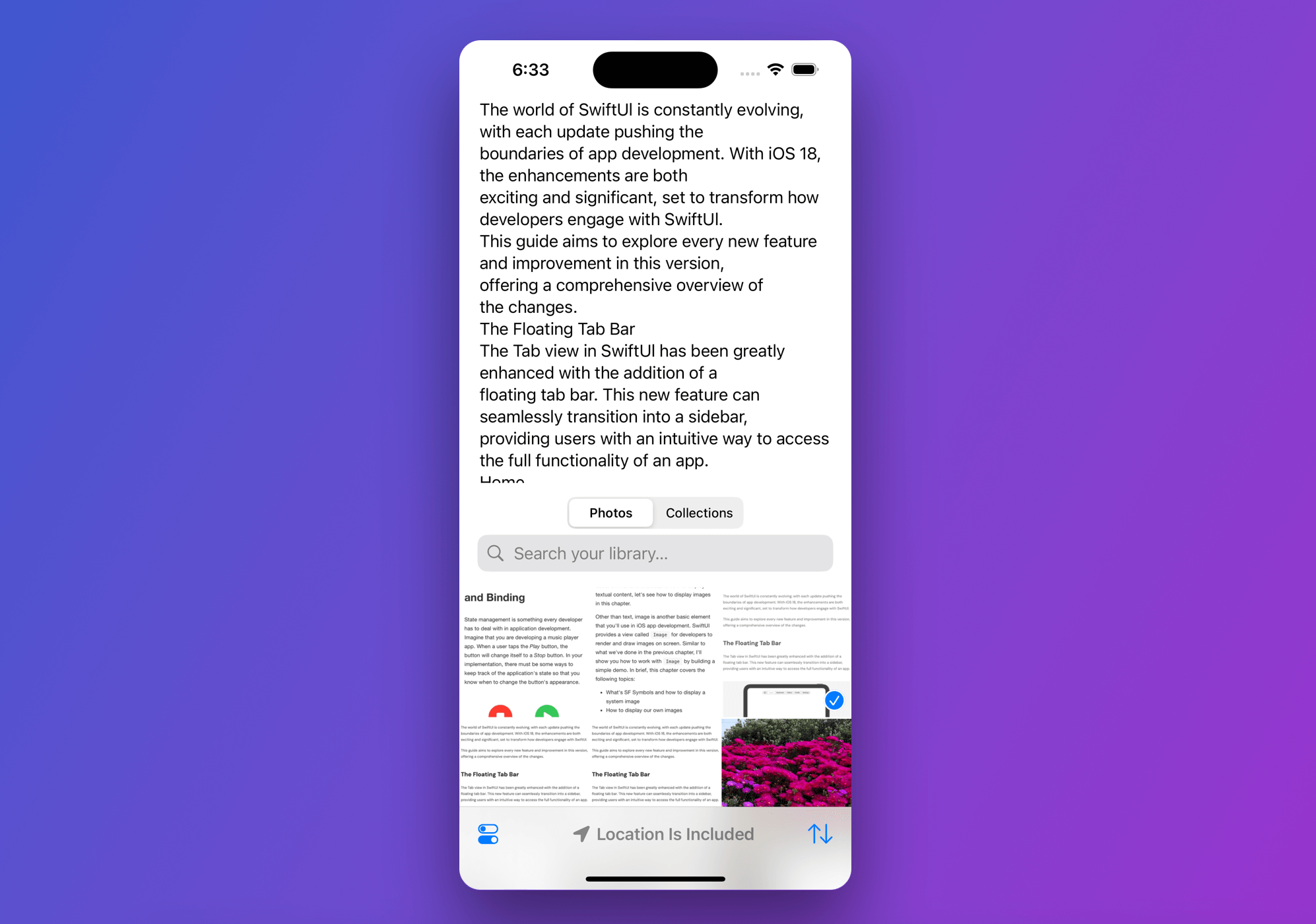
As always, we will create a demo application to guide you through the APIs. We will build a simple app that allows users to select an image from the photo library, and the app will extract the text from it in real time.
Let’s get started.
Loading the Photo Library with PhotosPicker
Assuming you’ve created a new SwiftUI project on Xcode 16, go to ContentView.swift and start building the basic UI of the demo app:
import SwiftUI
import PhotosUI

struct ContentView: View {

    @State private var selectedItem: PhotosPickerItem?

    @State private var recognizedText: String = "No text is detected"

    var body: some View {
        VStack {
            ScrollView {
                VStack {
                    Text(recognizedText)
                }
            }
            .contentMargins(.horizontal, 20.0, for: .scrollContent)

            Spacer()

            PhotosPicker(selection: $selectedItem, matching: .images) {
                Label("Select a photo", systemImage: "photo")
            }
            .photosPickerStyle(.inline)
            .photosPickerDisabledCapabilities([.selectionActions])
            .frame(height: 400)

        }
        .ignoresSafeArea(edges: .bottom)
    }
}
We utilize PhotosPicker to access the photo library and load the images in the lower part of the screen. The upper part of the screen features a scroll view for display the recognized text.
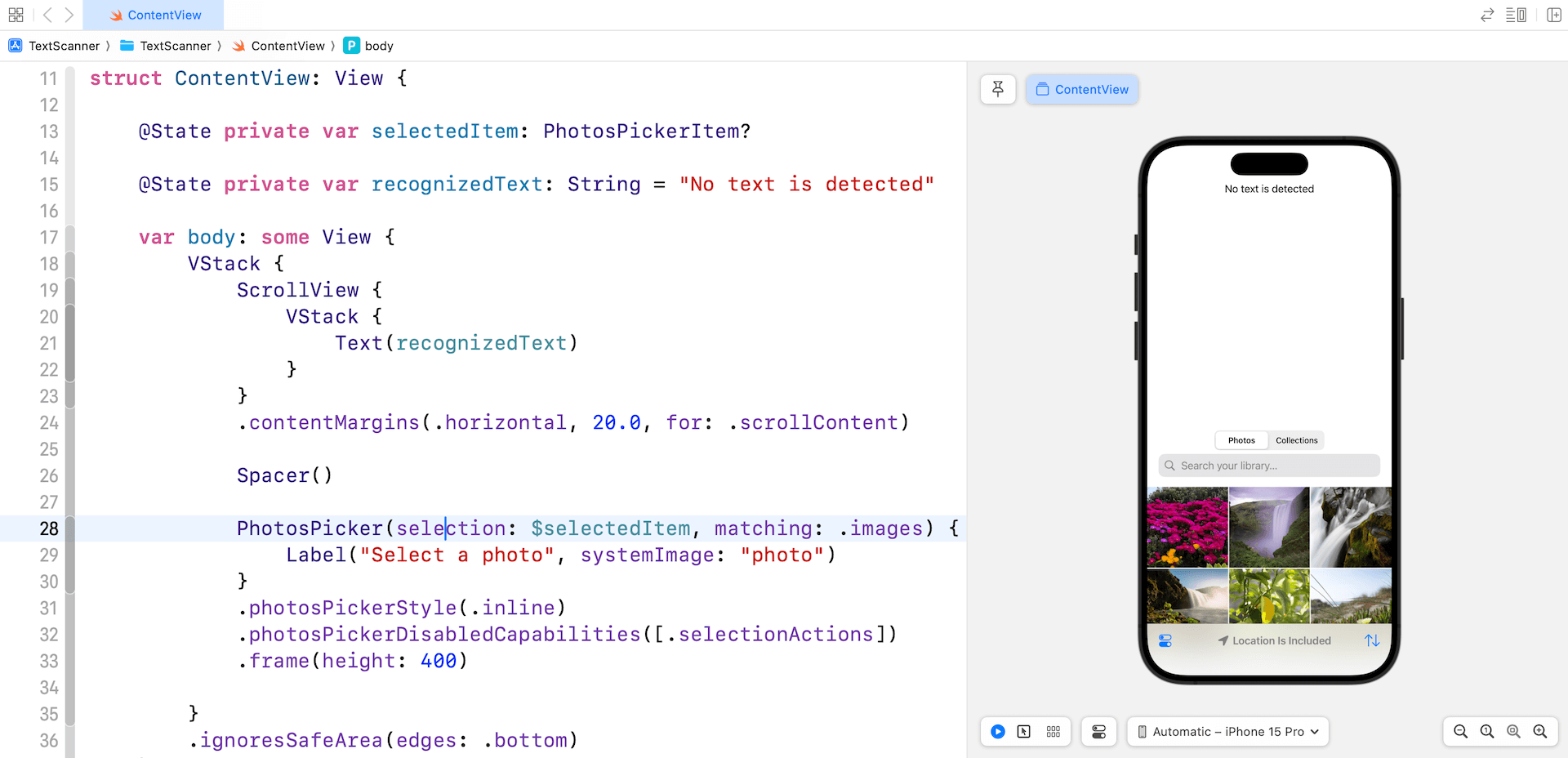
We have a state variable to keep track of the selected photo. To detect the selected image and load it as Data, you can attach the onChange modifier to the PhotosPicker view like this:
.onChange(of: selectedItem) { oldItem, newItem in
    Task {
        guard let imageData = try? await newItem?.loadTransferable(type: Data.self) else {
            return
        }
    }
}
Text Recognition with Vision
The new APIs in the Vision framework have simplified the implementation of text recognition. Vision offers 31 different request types, each tailored for a specific kind of image analysis. For instance, DetectBarcodesRequest is used for identifying and decoding barcodes. For our purposes, we will be using RecognizeTextRequest.
In the ContentView struct, add an import statement to import Vision and create a new function named recognizeText:
private func recognizeText(image: UIImage) async {
    guard let cgImage = image.cgImage else { return }

    let textRequest = RecognizeTextRequest()

    let handler = ImageRequestHandler(cgImage)

    do {
        let result = try await handler.perform(textRequest)
        let recognizedStrings = result.compactMap { observation in
            observation.topCandidates(1).first?.string
        }

        recognizedText = recognizedStrings.joined(separator: "\n")

    } catch {
        recognizedText = "Failed to recognized text"
        print(error)
    }
}
This function takes in an UIImage object, which is the selected photo, and extract the text from it. The RecognizeTextRequest object is designed to identify rectangular text regions within an image.
The ImageRequestHandler object processes the text recognition request on a given image. When we call its performfunction, it returns the results as RecognizedTextObservation objects, each containing details about the location and content of the recognized text.
We then use compactMap to extract the recognized strings. The topCandidates method returns the best matches for the recognized text. By setting the maximum number of candidates to 1, we ensure that only the top candidate is retrieved.
Finally, we use the joined method to concatenate all the recognized strings.
With the recognizeText method in place, we can update the onChange modifier to call this method, performing text recognition on the selected photo.
.onChange(of: selectedItem) { oldItem, newItem in
    Task {
        guard let imageData = try? await newItem?.loadTransferable(type: Data.self) else {
            return
        }

        await recognizeText(image: UIImage(data: imageData)!)
    }
}
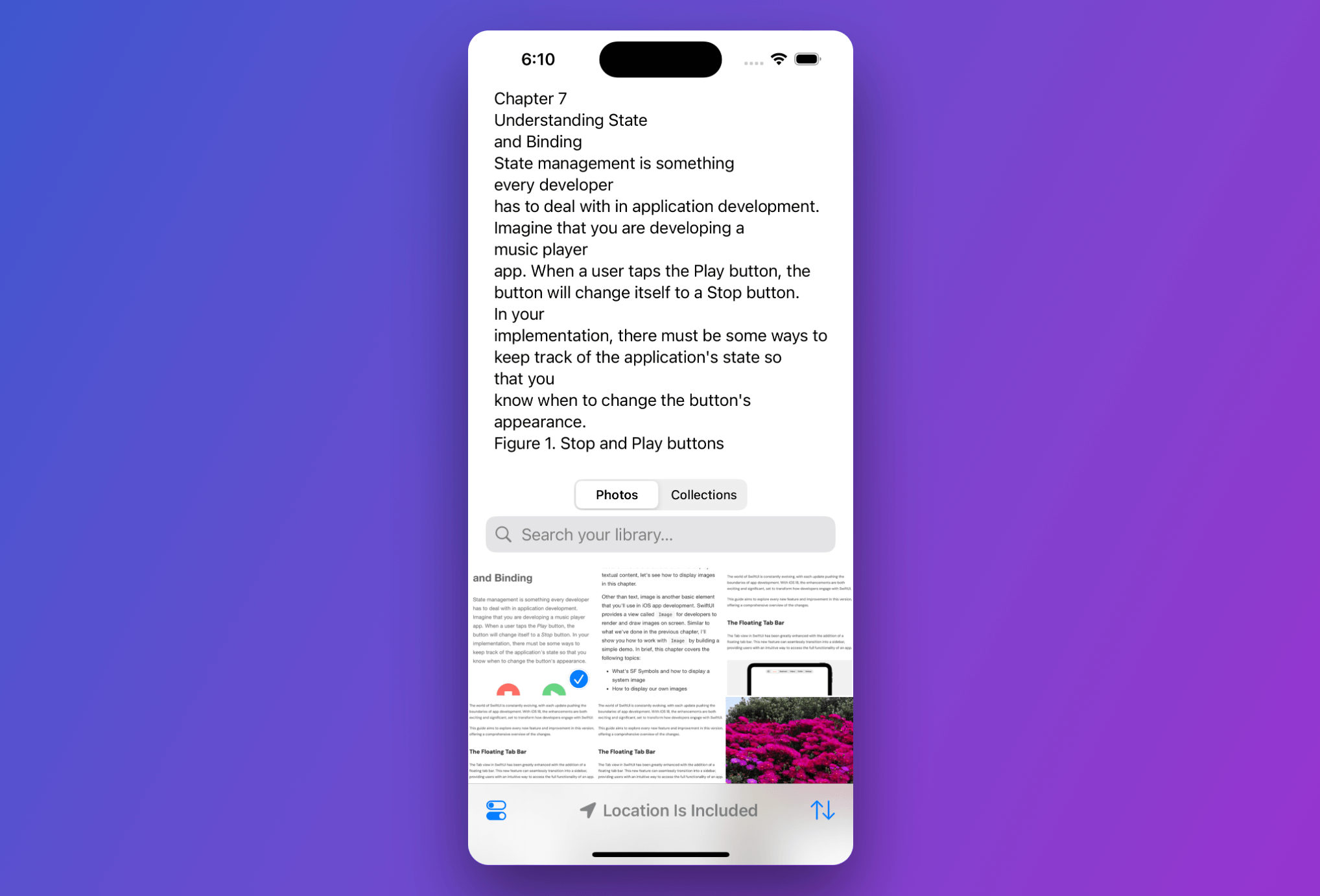
With the implementation complete, you can now run the app in a simulator to test it out. If you have a photo containing text, the app should successfully extract and display the text on screen.
Summary
With the introduction of the new Vision APIs in iOS 18, we can now achieve text recognition tasks with remarkable ease, requiring only a few lines of code to implement. This enhanced simplicity allows developers to quickly and efficiently integrate text recognition features into their applications.
What do you think about this improvement of the Vision framework? Feel free to leave comment below to share your thought.