

The Apple Foundation Models provides a large language model (LLM) that Apple has optimized to run locally on end-user devices, such as laptops, desktops, or mobile devices. Traditional LLMs operate in data centers equipped with high-powered GPUs, which require substantial memory and substantial power. Bringing that functionality to an end-user device requires significant changes to the model. In Apple’s case, the two most important changes to produce Foundation Models are reducing the number of parameters and quantizing model values.
These reduced models still contain all the inherent risks of LLMs, such as hallucinations, while these changes to fit onto an end-user device make some uses either impossible or less effective. You can still find it valuable for some tasks, such as summarizing text, understanding text, modifying text, and simple generation tasks, such as writing and data generation. In this tutorial, you’ll modify an app to use Apple Foundation Models to summarize text.
Apple Foundation Model Requirements
To use the on-device language model, the user needs to have hardware that supports Apple Intelligence. The user must also turn on Apple Intelligence on their device, and the device must be running version 26 or later of the operating system. When developing, your computer must run macOS 26.0 or later, or you must run your apps on a device that natively supports Apple Intelligence and runs iOS 26 or iPadOS 26 or later. Even if the Simulator is running an appropriate version of the OS, it will only work if the underlying macOS supports Apple Foundation Models.
When following along with this tutorial, also note that macOS 26 virtual machines often fail to support Apple Foundation Models. You’ll need either a physical Mac running macOS 26 or later, or a device with Apple Foundation Models support to run the app.
Checking For Model Availability
Download the materials for this tutorial, and open the starter project. You’ll see a project that implements a share extension that currently echoes any text sent to the extension in a new window. This app has two schemas: LocalSummarizer, which contains the app, and SummarizeExtension, which includes the share extension. Select the SummarizeExtension schema. Build and run the app. You will be asked to select an app to run with the extension. Choose the Safari app in the Simulator, as it provides an easy way to send data to the extension for testing.
Bring up any web page that contains a long field of text. Tap and hold on some text, and then select the text.
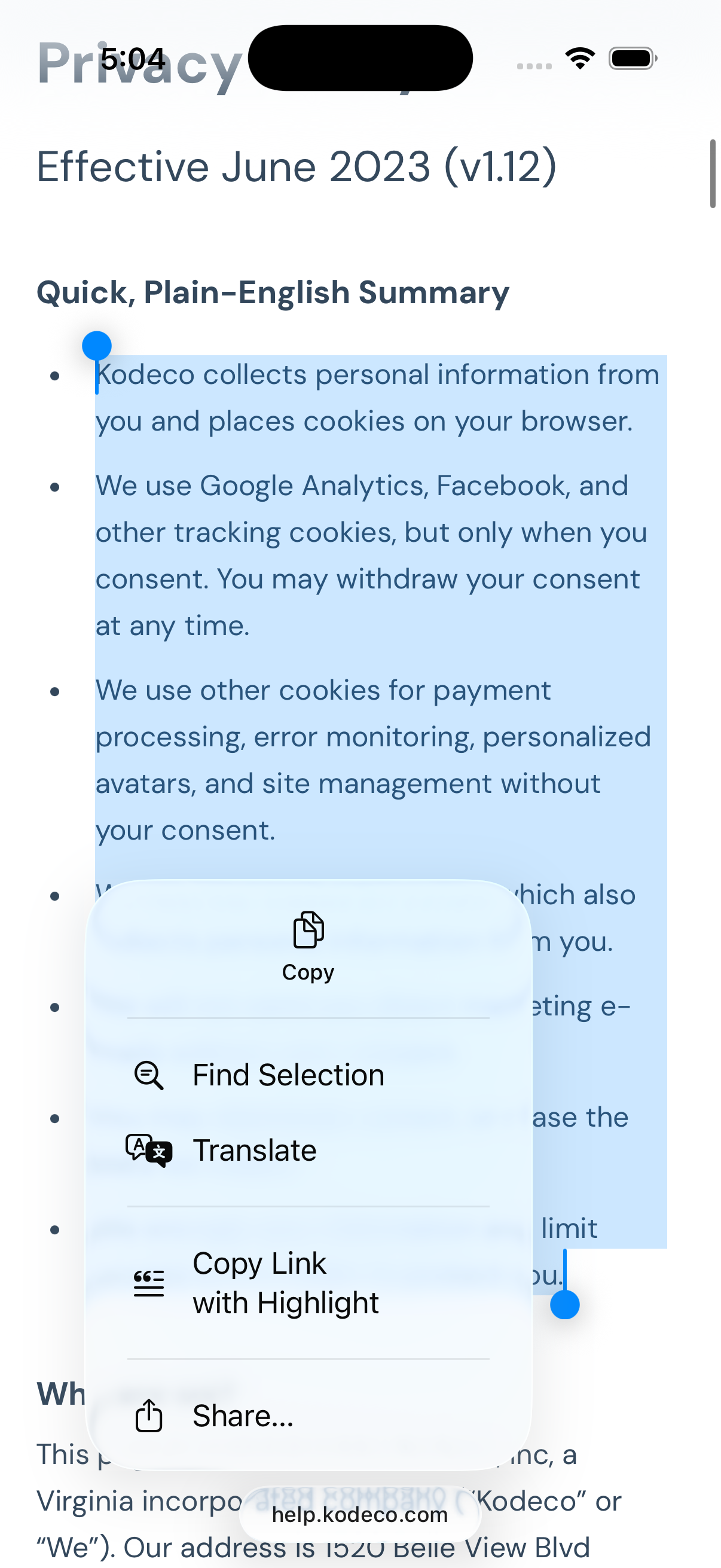
Now long-press on the selected text, and select Share. If you don’t see a Share option in the menu, click the right chevron. Choose the LocalSummarizer option with the Kodeco Logo. This will load a Text Summary overlay window that will show the selected text.
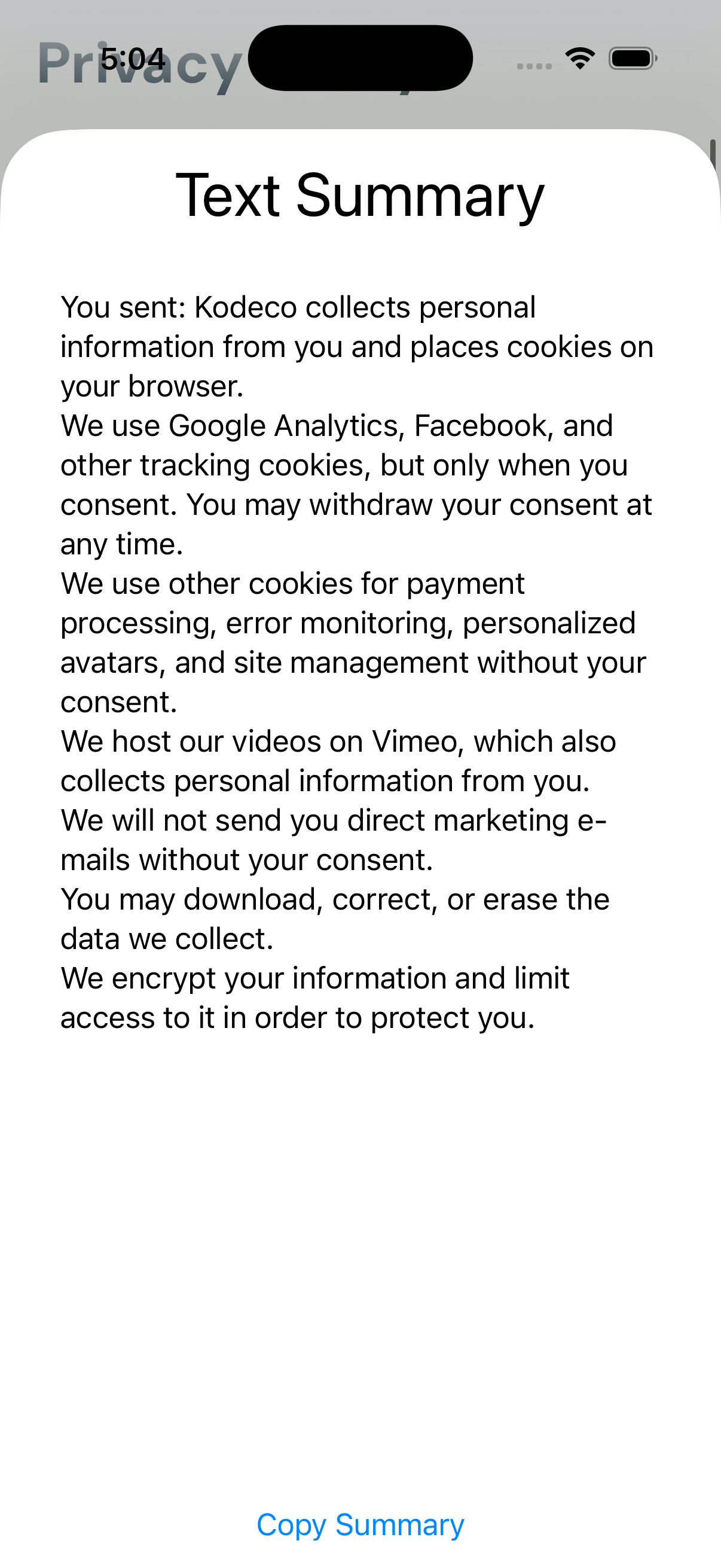
You can tap the Copy Summary button to copy the text to the clipboard and swipe down on the window to go back to the original app. In this tutorial, you’ll update this app to use Apple Foundation Models to display a summary of the selected text instead.
Before using Apple Foundation Models, you must ensure the user’s device supports it and that the user has turned it on. To do this, create a new SwiftUI view named ModelCheckView.swift under the SummarizeExtension folder. To do this, go to File ▸ File from Template… and select SwiftUI View. Give the view the ModelCheckView.swift name and make sure the SummarizeExtension target is the only one selected.
Now open the ModelCheckView.swift file. Add the import needed to use Foundation Models at the top:
import FoundationModels
Then add the following properties to the top of the struct:
let sharedText: String
let onDone: () -> Void
let model = SystemLanguageModel.default
You will use the sharedText property to pass the text to be summarized into the view that displays the summarization. You can pass a method to onDone that will be called when the user closes the summarizing view. You place an instance of SystemLanguageModel.default into model. This property provides access to Foundation Models in your app. Also, delete the #Preview macro and its closure.
Now replace the view with:
// 1
switch model.availability {
// 2
case .available:
  SummaryView(sharedText: sharedText, onDone: onDone)
// 3
case .unavailable(.deviceNotEligible):
  Text("Apple Intelligence is not available on this device.")
case .unavailable(.appleIntelligenceNotEnabled):
  Text("Apple Intelligence is available, but not enabled on this device.")
case .unavailable(.modelNotReady):
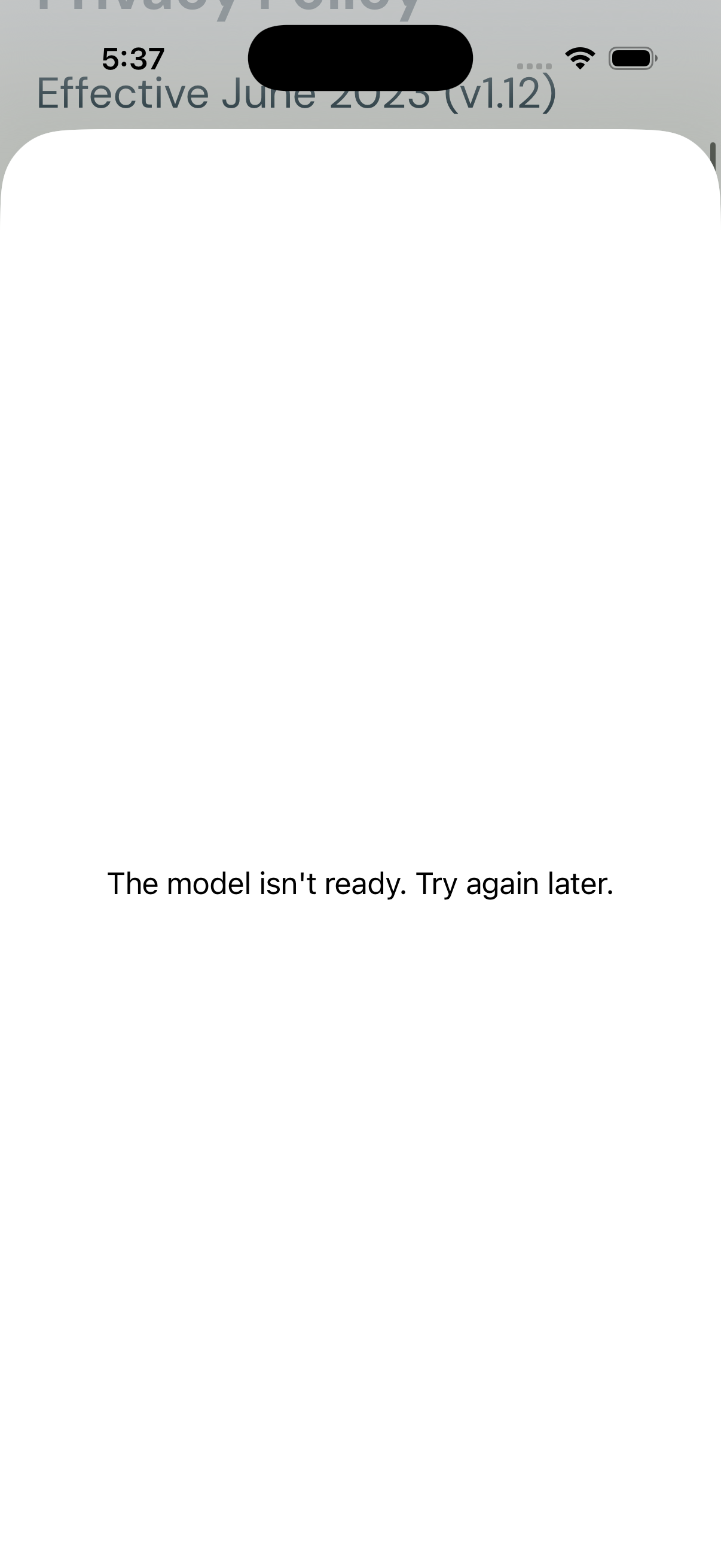
  Text("The model isn't ready. Try again later.")
// 4
case .unavailable:
  Text("An unknown error prevents Apple Intelligence from working.")
}
This code handles current error conditions and provides a default for any future error states, displaying related text for each.
1. The model.availability property contains an enum with the availability status for the default model. You use a switch statement to display different information for each status.
2. For the case when Foundation Models is available and working, you will display the existing SummaryView, passing in the sharedText and onDone properties passed into this view.
3. You display a text message for each of the current errors to help the user identify what needs to be done to allow the app to work. Note that if you get modelNotReady in the Simulator, it’s usually because the device running the Simulator does not support Foundation Models. This message also appears in many cases if you attempt to run the app on a Simulator running within a virtual machine on a device that doesn’t support Foundation Models.
4. This case handles any errors not specifically handled earlier. This will future-proof the app to display an error message to the user, even if it can’t provide details.
Now you need to update the extension to display this view instead of the current SummaryView view. Open ShareViewController.swift, which is a wrapper that bridges the traditional UIKit extension into SwiftUI. Find the showSwiftUIView(with:) method. Change the first line to:
let wvc = UIHostingController(
  rootView: ModelCheckView(
    sharedText: text,
    onDone: closeExtension
  )
)
This will call your new intermediate ModelCheckView instead of the SummaryView directly. Run the app, select some text and then share it to the SummarizeExtension. You should see the same thing as before if your device or Simulator supports Foundation Models. Otherwise, you’ll see the appropriate error.
For testing, you can also test different availability options for Foundation Models from within XCode. Select a Scheme (either LocalSummarizer or SummarizeExtension), click on the dropdown arrow and select Edit Scheme….
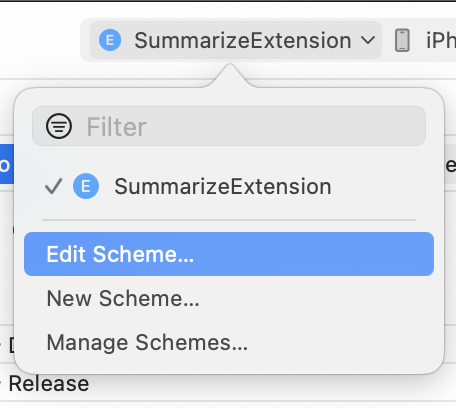
Under Run, select the Options tab. You’ll see a dropdown with several options for Simulated Foundation Models Availability. This option defaults to Off, which allows the device’s actual status through to the app. You can change to another available status, and the app will reflect that change. If you select Apple Intelligence Not Enabled, the app will display that message.
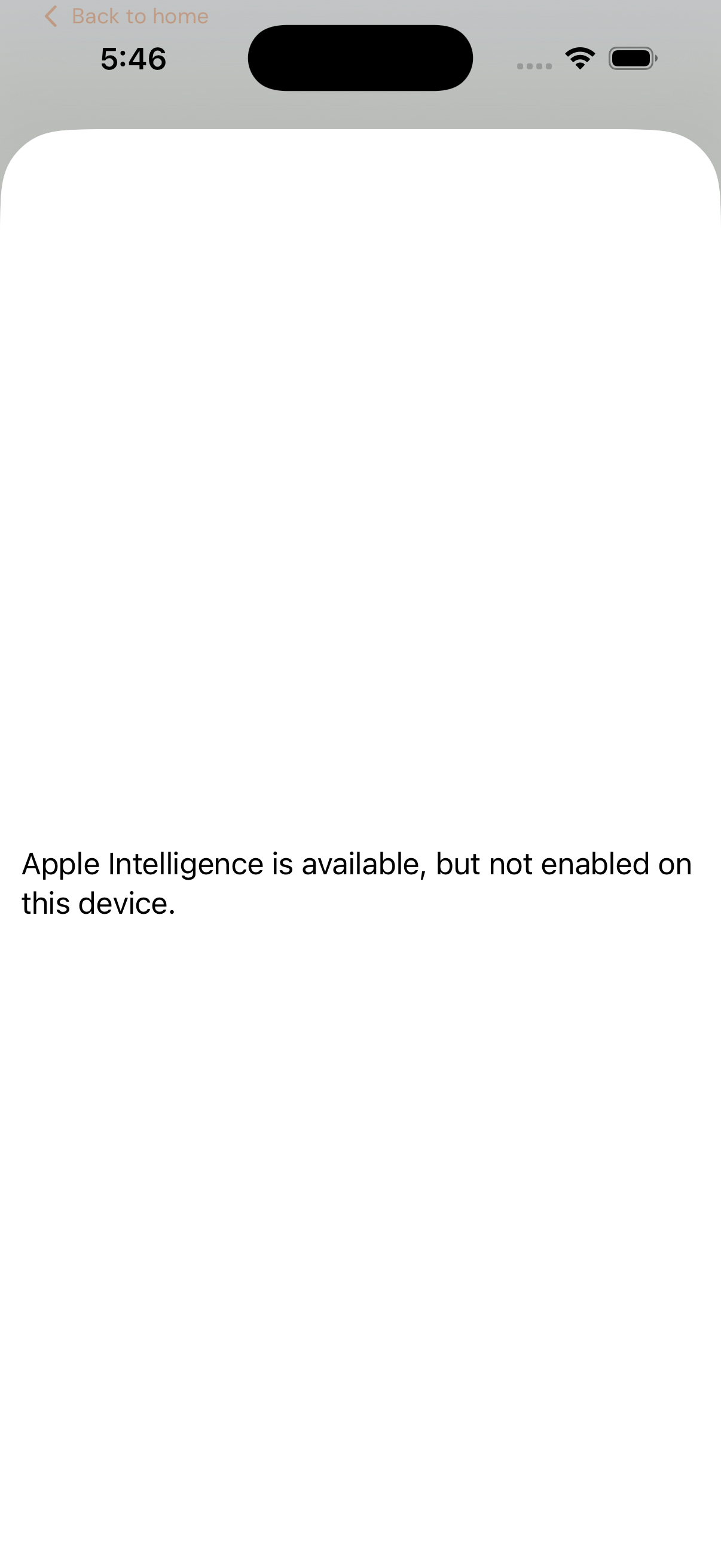
Don’t forget to set this back to Off before continuing to save yourself frustration.
Next, you will set up the app itself to provide a similar status view. Open ContentView.swift under the LocalSummarizer target. You’ll use a simpler version of the last view. Add the following import to the top:
import FoundationModels
This lets you reference Foundation Models on the view. Now change the body to:
switch SystemLanguageModel.default.availability {
case .available:
  Text("This device support Apple Foundation Models.")
case .unavailable(.deviceNotEligible):
  Text("Apple Intelligence is not available on this device.")
case .unavailable(.appleIntelligenceNotEnabled):
  Text("Apple Intelligence is available, but not enabled on this device.")
case .unavailable(.modelNotReady):
  Text("The model isn't ready. Try again later.")
case .unavailable:
  Text("An unknown error prevents Apple Intelligence from working.")
}
As before, this displays a description for all errors along with a message when Foundation Models is available.
Now that you’ve ensured Foundation Models is available on the user’s device, you will use it to summarize text in the next section.