

Finding the right data assets in large enterprise catalogs can be challenging, especially when thousands of datasets are cataloged with organization-specific metadata. Amazon SageMaker Unified Studio now supports custom metadata search filters. You can filter catalog assets using your own metadata form fields like therapeutic area, data sensitivity, or geographic region rather than relying only on free-text search. Custom metadata forms are structured templates that define additional attributes that can be attached to catalog assets.
In this post, you learn how to create custom metadata forms, publish assets with metadata values, and use structured filters to discover those assets. We explore a healthcare and life sciences use case. A research organization catalogs metrics in Amazon SageMaker Catalog using custom metadata forms with fields such as Therapeutic Area and Sample Size. Researchers building Machine learning models can now search datasets based on custom filters across hundreds of cataloged assets to identify the best datasets to train their models.
Key capabilities
Custom metadata search filters in SageMaker Unified Studio offer the following key capabilities:
- Custom metadata form filters – You can filter search results using any custom metadata form fields defined in their catalog. For example, a researcher can filter by Therapeutic Area = Oncology and Data Sensitivity = Confidential to locate specific datasets.
- Name and description filters – You can add filters that target asset names or descriptions using a text search operator, enabling targeted discovery without scanning full search results.
- Date range filters – You can filter assets by date using on, before, after, and between operators, making it straightforward to locate recently updated or historically relevant assets.
- Combinable filters – You can combine multiple filters to construct precise queries. For example, filtering by AWS Region = US AND Classification = PII AND Updated after 2026-01-01 returns only assets matching all three criteria.
- Persistent filter selections – You can filter configurations stored in your browser and are not shared across devices or other users. You can later return to the catalog and find your previously defined filters.
Solution overview
In the following sections, we demonstrate how to set up custom metadata forms, publish assets with metadata values, and use custom metadata search filters to discover those assets.We complete the following three steps for the demonstration.
- Create a custom metadata form
- Create and publish assets with metadata
- Use custom metadata search filters
Prerequisites
To follow along with this post, you should have:
For instructions on setting up a domain and project, see the Getting started guide.
To create a custom metadata form
Complete the following steps to create a custom metadata form with filterable fields:
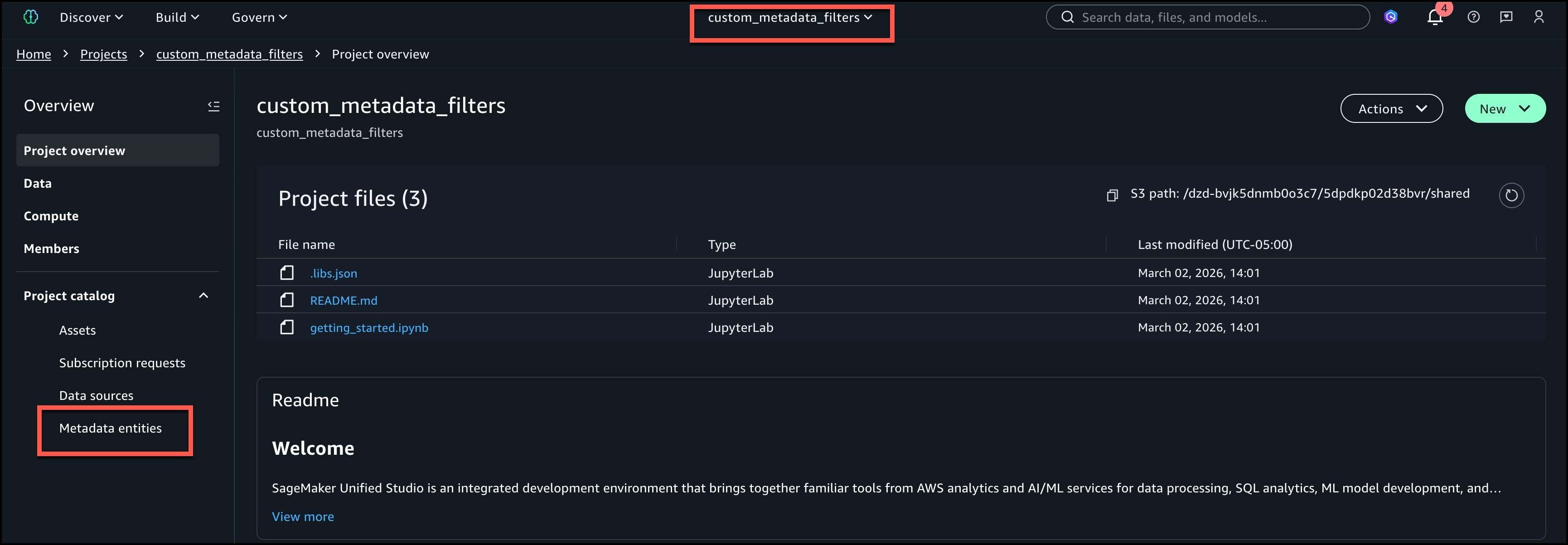
- In SageMaker Unified Studio, choose Project overview from the navigation pane.
- Under Project catalog, choose Metadata entities.
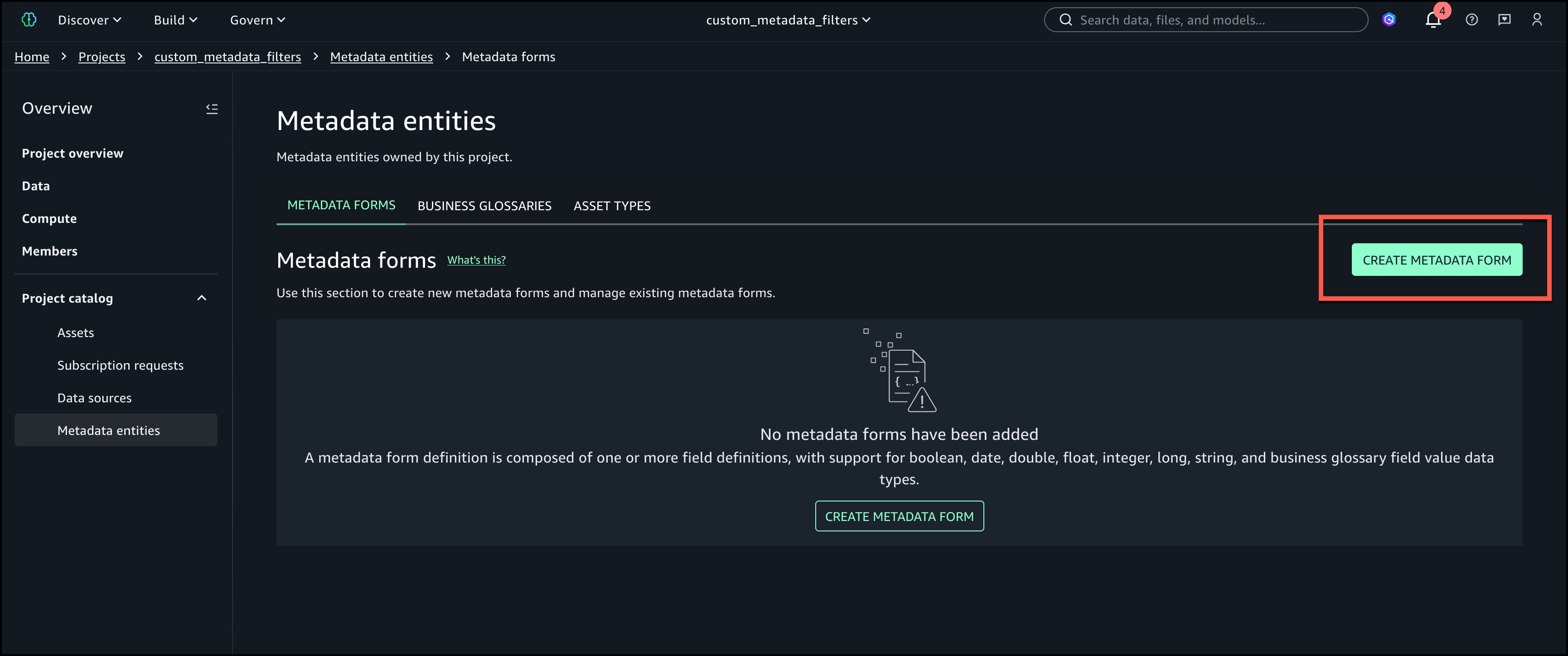
- Choose Create metadata form.
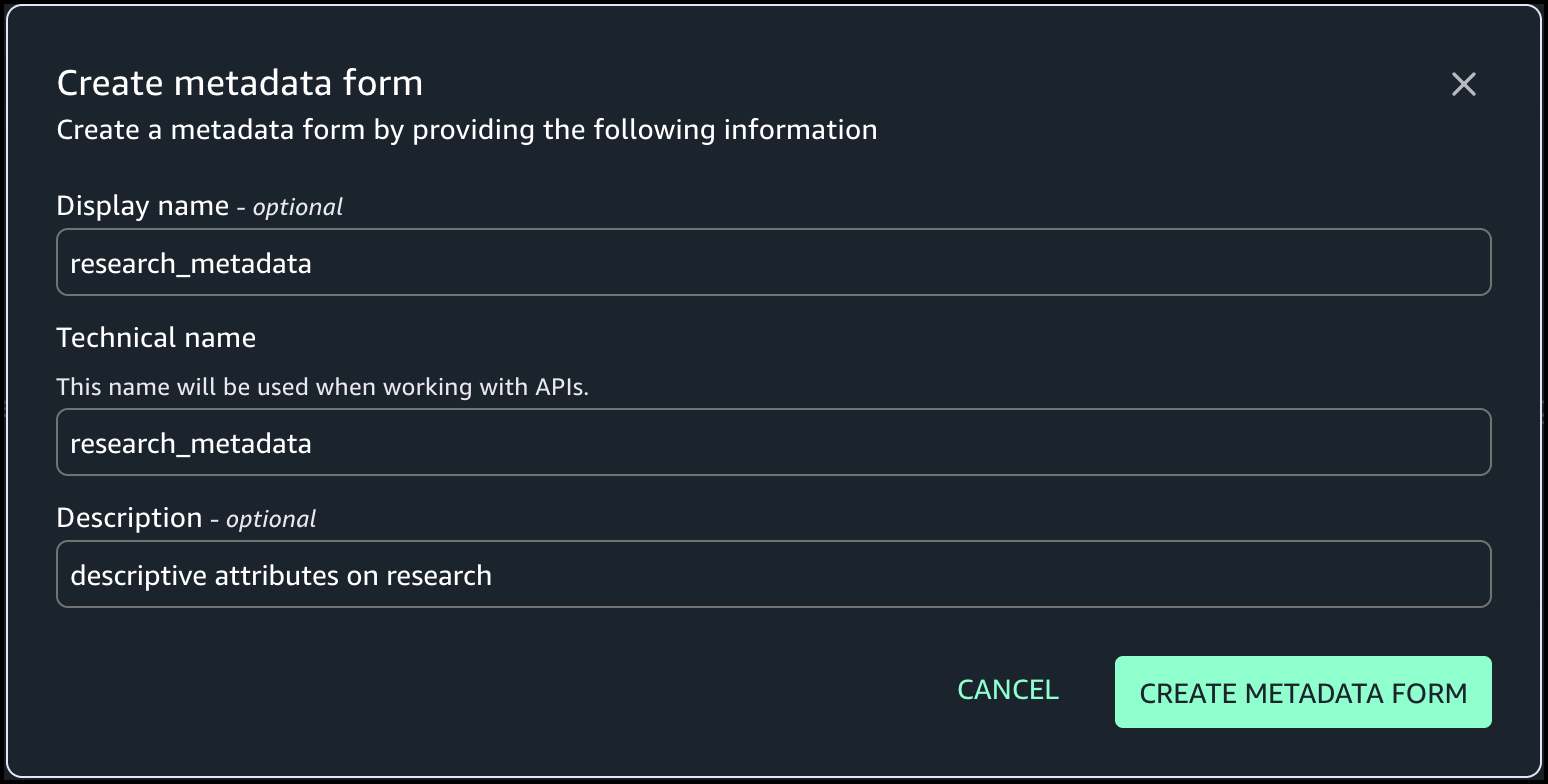
- To create a new metadata form ‘research_metadata’ use the following details, then choose Create metadata form.
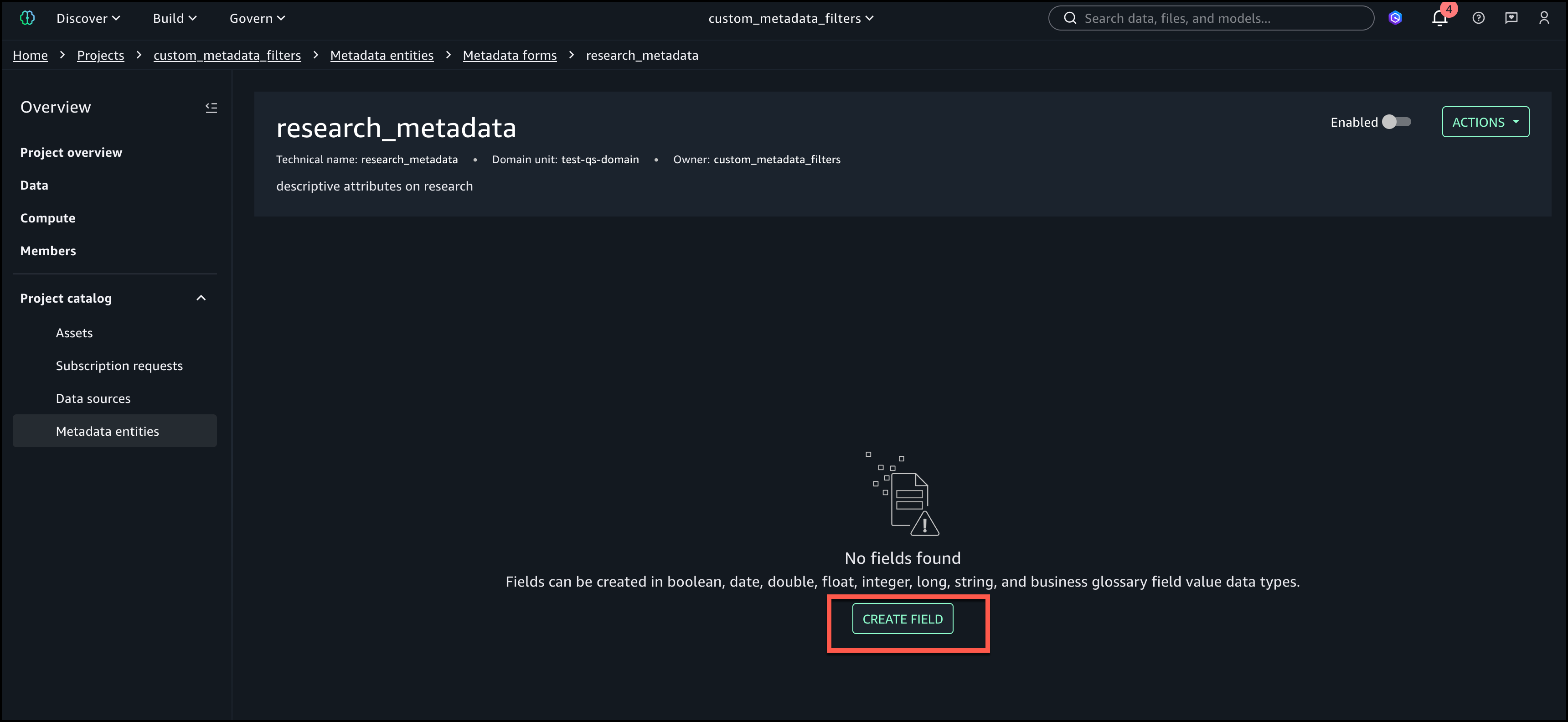
- Define the form fields. For this demo, we add the following fields:
Create first field Therapeutic Area (String) – Mark as Searchable
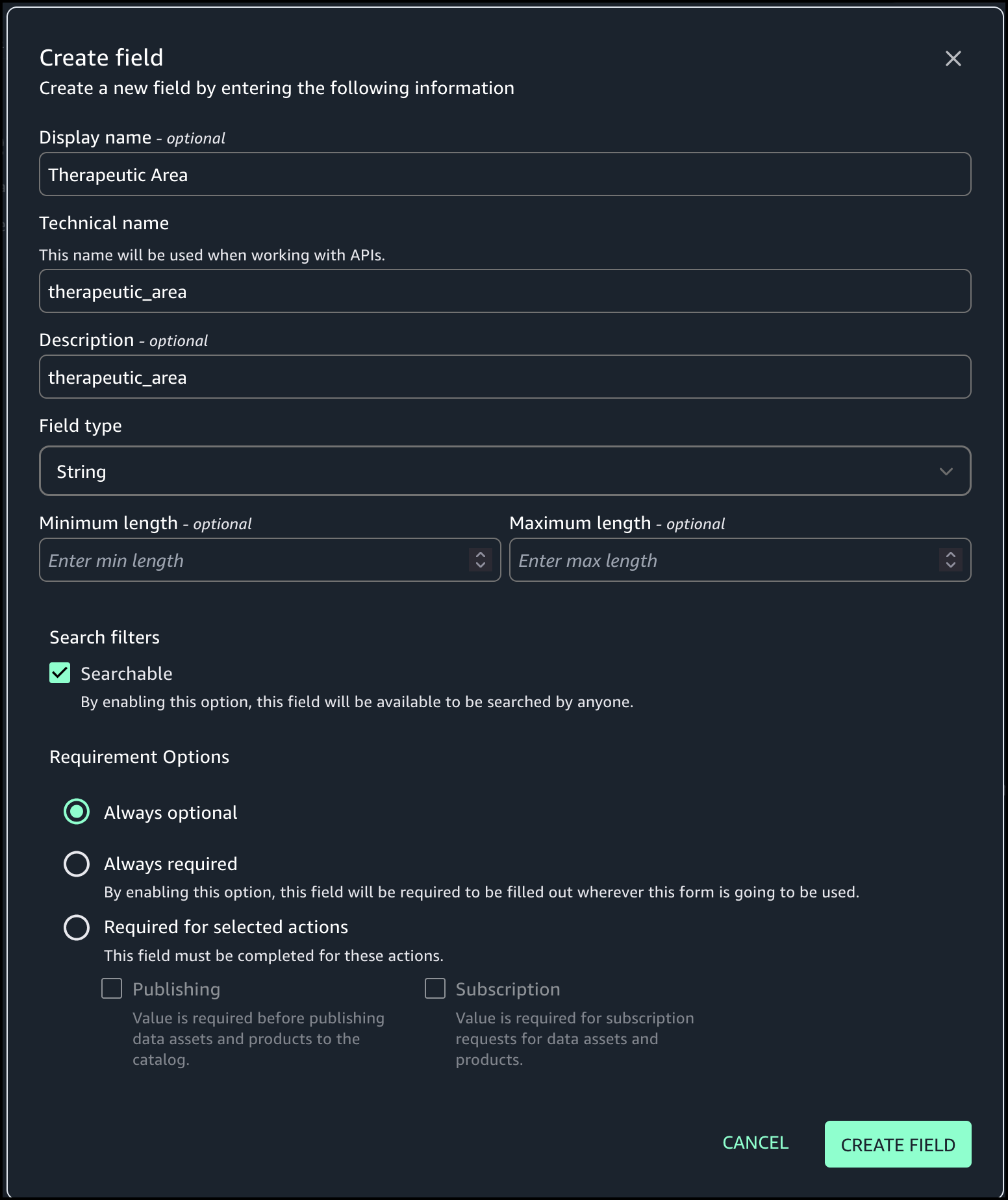
Create second field Subject Count (Integer) – Mark as Filterable by range
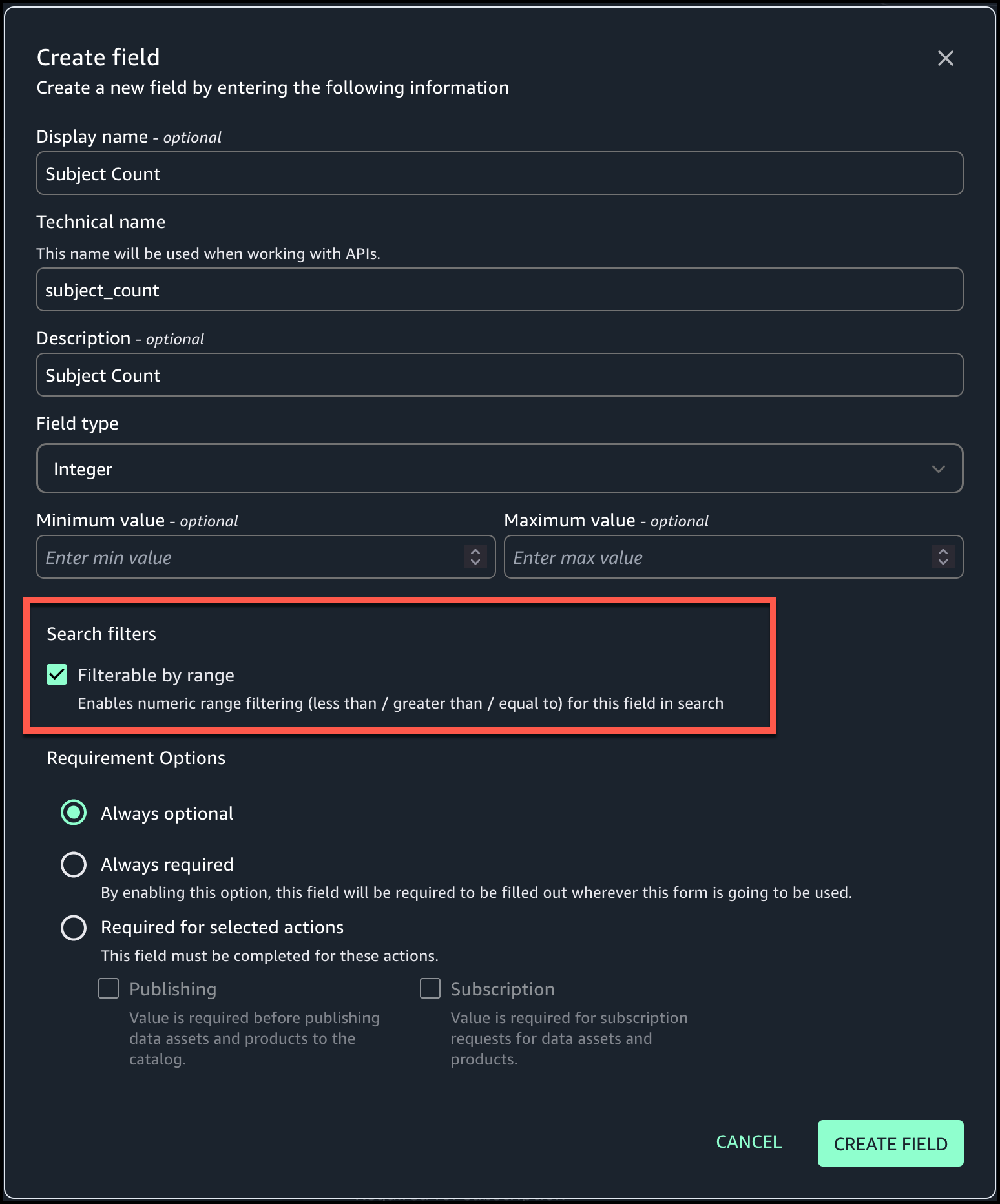
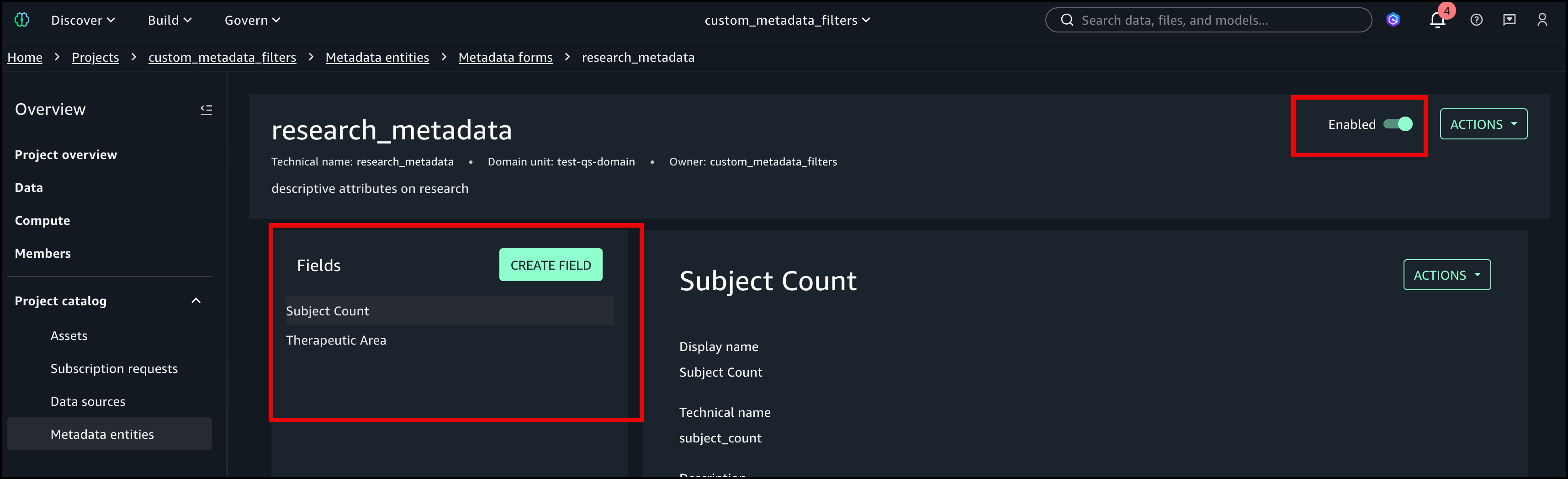
- Mark the form as ‘Enabled’ so the form is visible and can be used.
Create and publish with metadata
In this section, you create a custom asset and attach the research_metadata form created in the previous step.
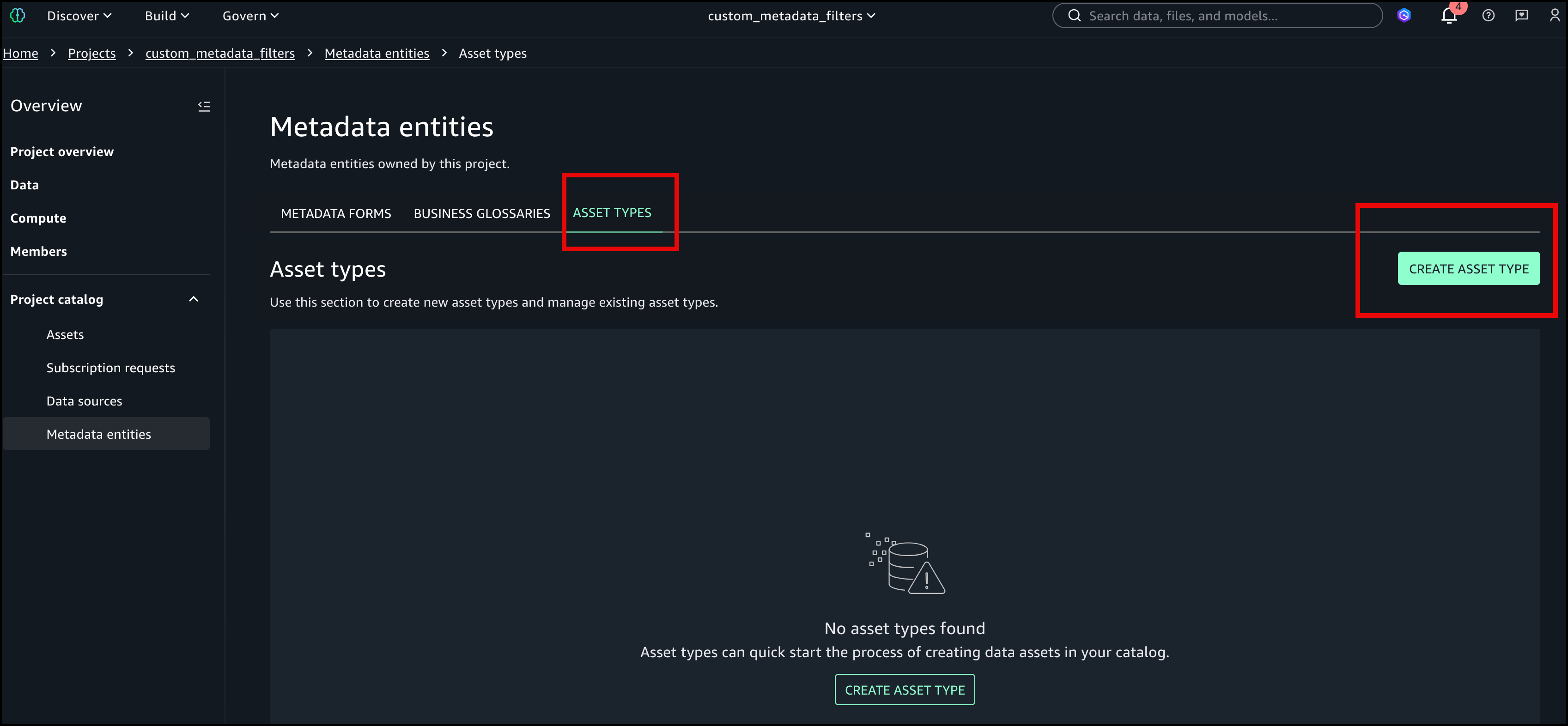
- Under Project catalog in the navigation pane, choose Metadata entities. Choose the ‘ASSET TYPES’ tab and select “CREATE ASSET TYPE’.
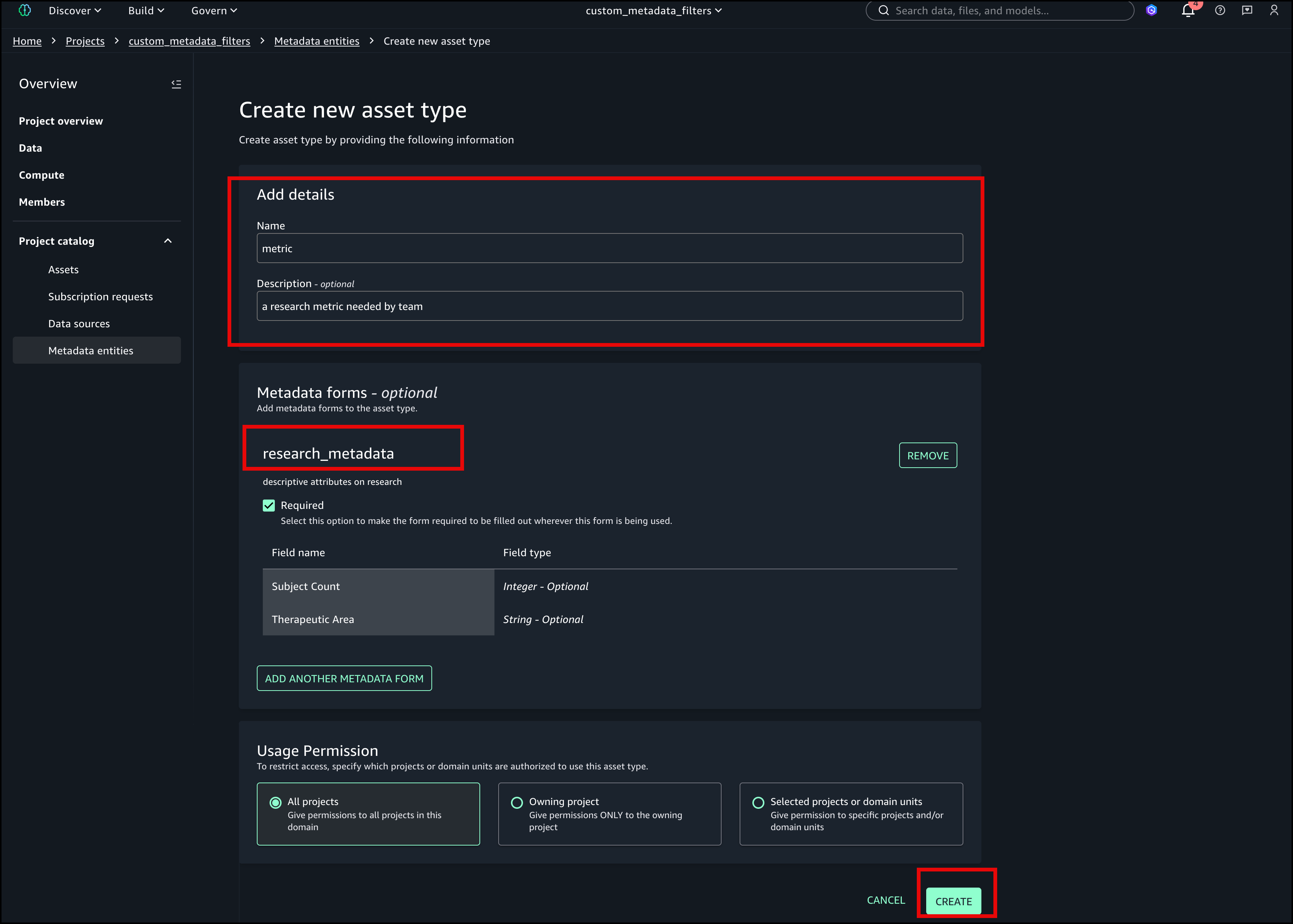
- Create a new asset type and attach the metadata form that we created in the previous step.
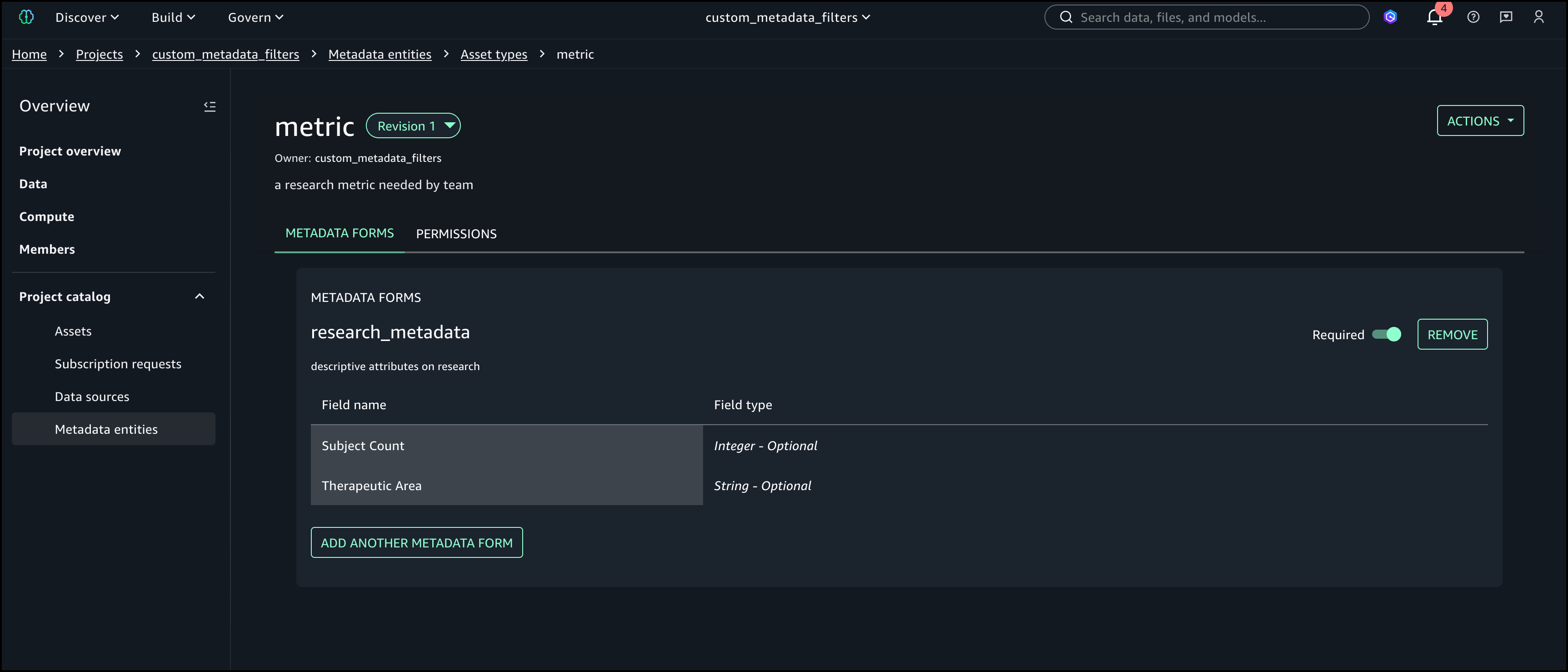
A new asset type ‘metric’ is created.
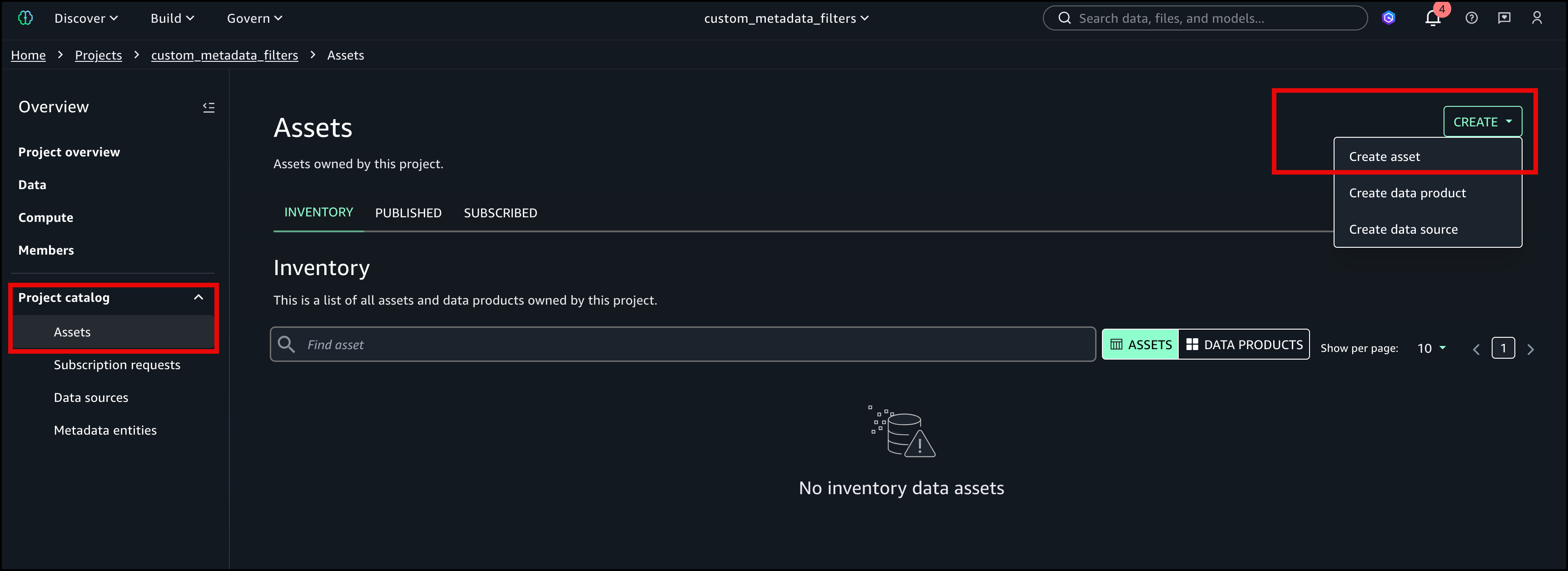
- Next, we will create two metrics. Under Project catalog in the navigation pane, choose Assets. On the Asset page, choose CREATE, and then choose Create asset from the menu.
- In this demo, you create two metrics.
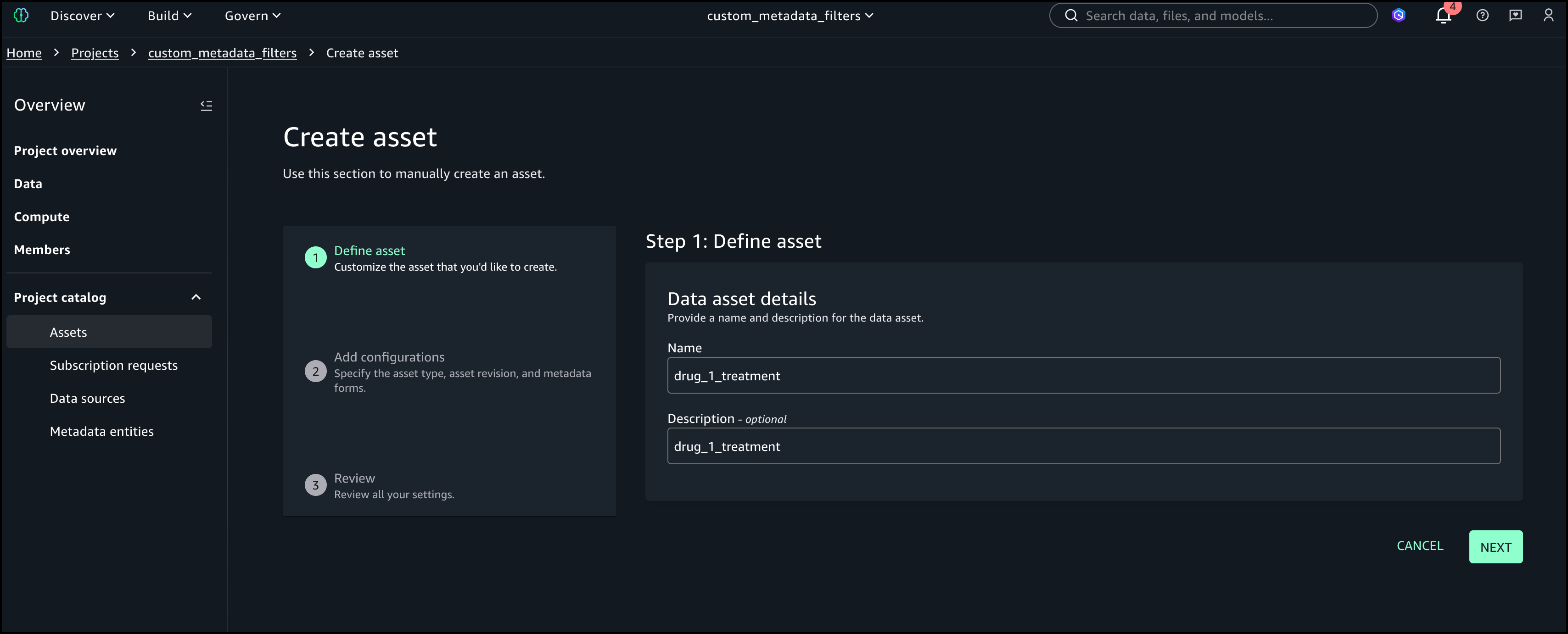
For the first metric ‘drug_1_treatment’, provide the following asset name and description.
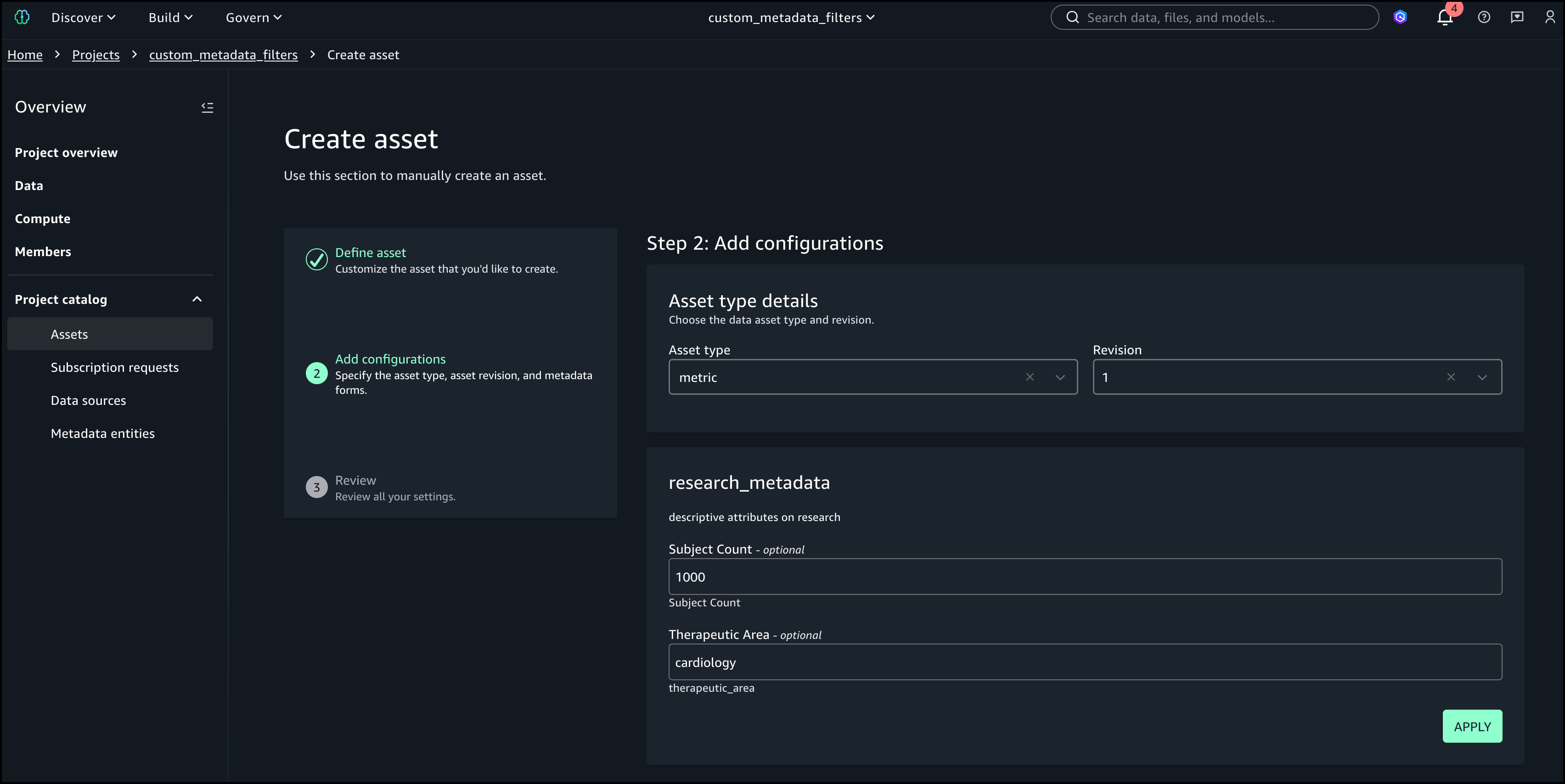
Add the following values for the metadata form.
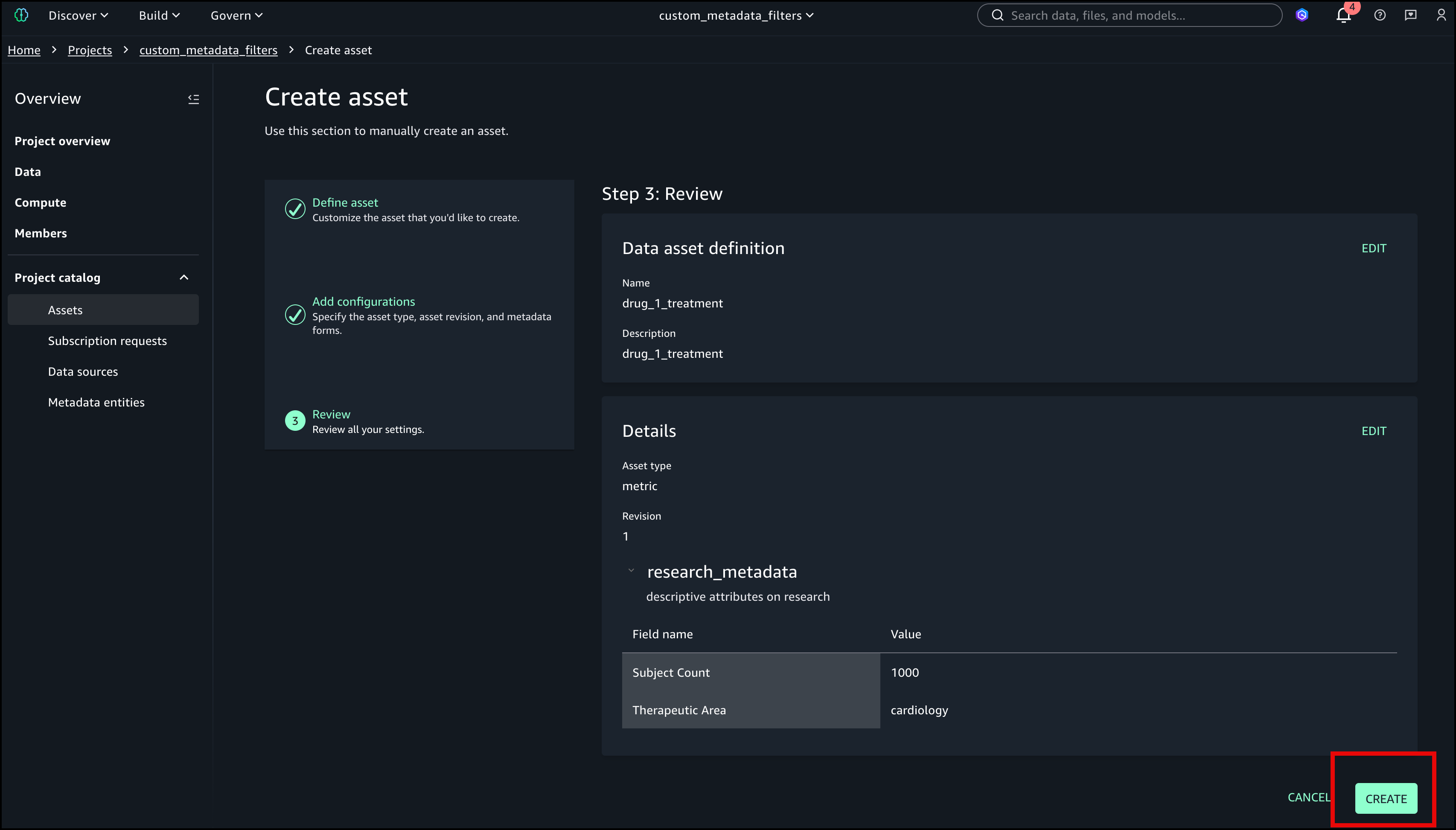
Validate all fields and choose CREATE.
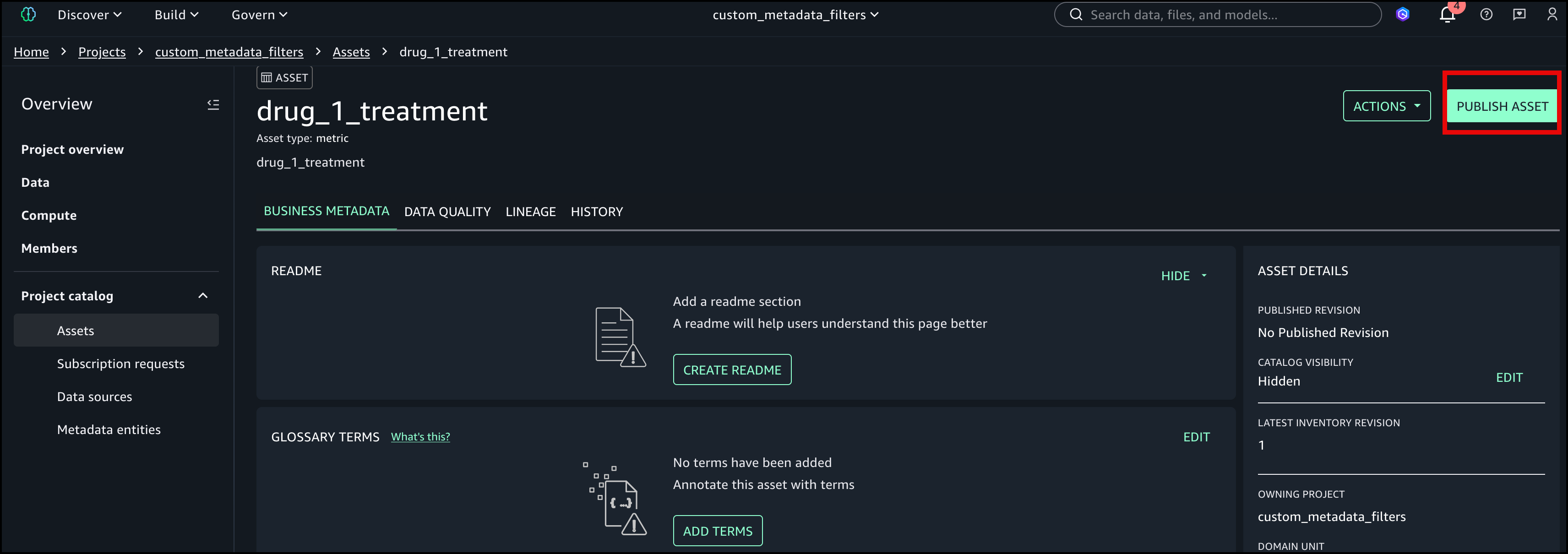
Publish the asset to the catalog.
Next, we will create the second metric ‘drug_1_treatment’. Repeat the steps from the previous procedure and enter the values shown.
- Subject Count = 450
- Therapeutic Area = Oncology
Use custom metadata search filters
After publishing assets with custom metadata, go to the Browse Assets page to use the filters.
To browse assets and view filters
- In SageMaker Unified Studio, choose Discover from the navigation bar, then select Catalog, Browse Assets.
- The search page displays with the filter sidebar on the left. You can see the existing system filters (Data type, Glossary terms, Asset type, Owning project, Source Region, Source account, Domain unit) along with the new Date range and Add Filter sections.
Add a custom filter
- Choose + Add Filter at the bottom of the filter sidebar. For Filter type, select Metadata form. For Metadata form, select research_metadata and add a filter as shown in the following image. Choose Apply when you’re done.
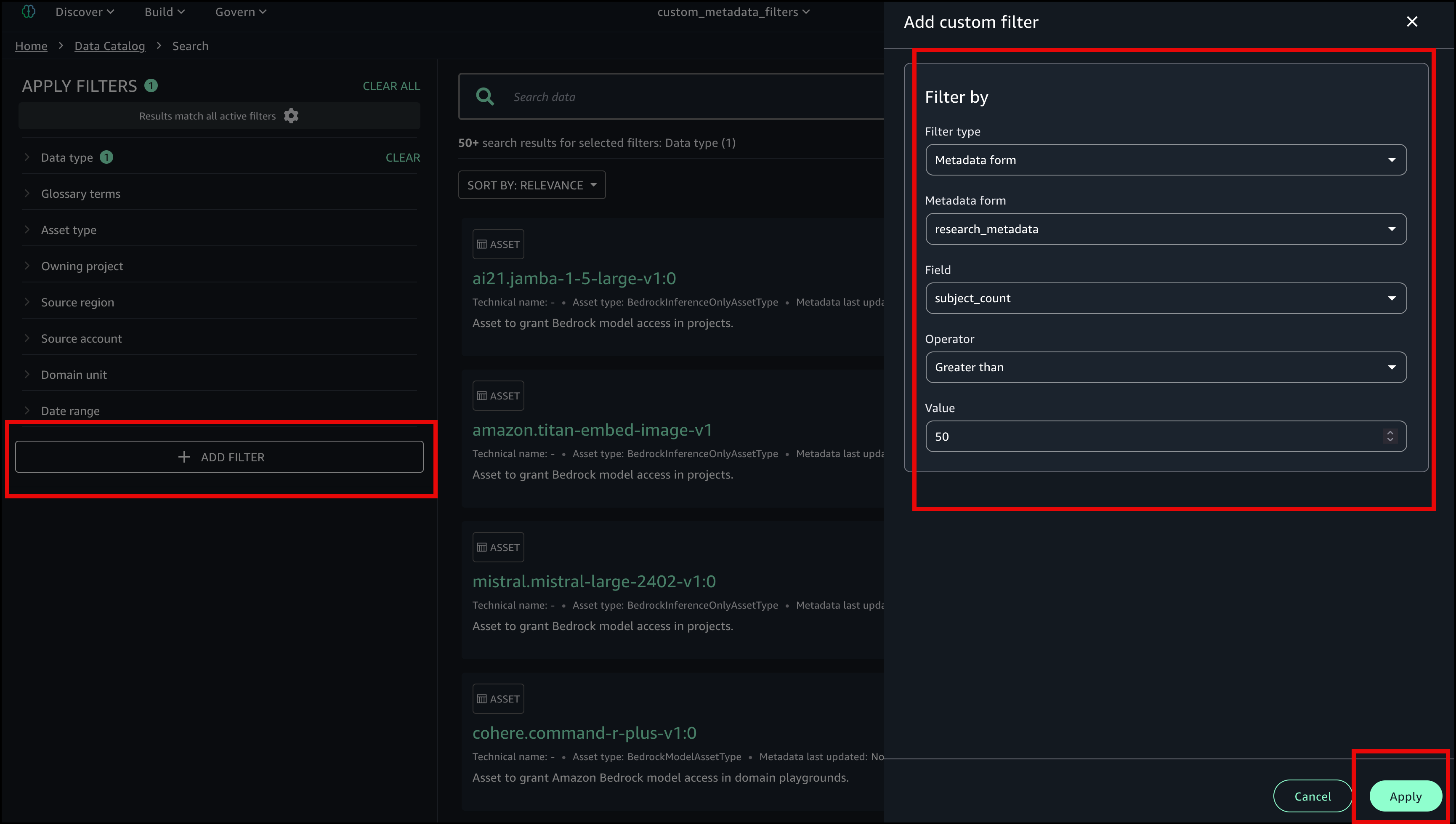
The search results update to show only assets where ‘subject_count’ is greater than 50.
To combine multiple filters
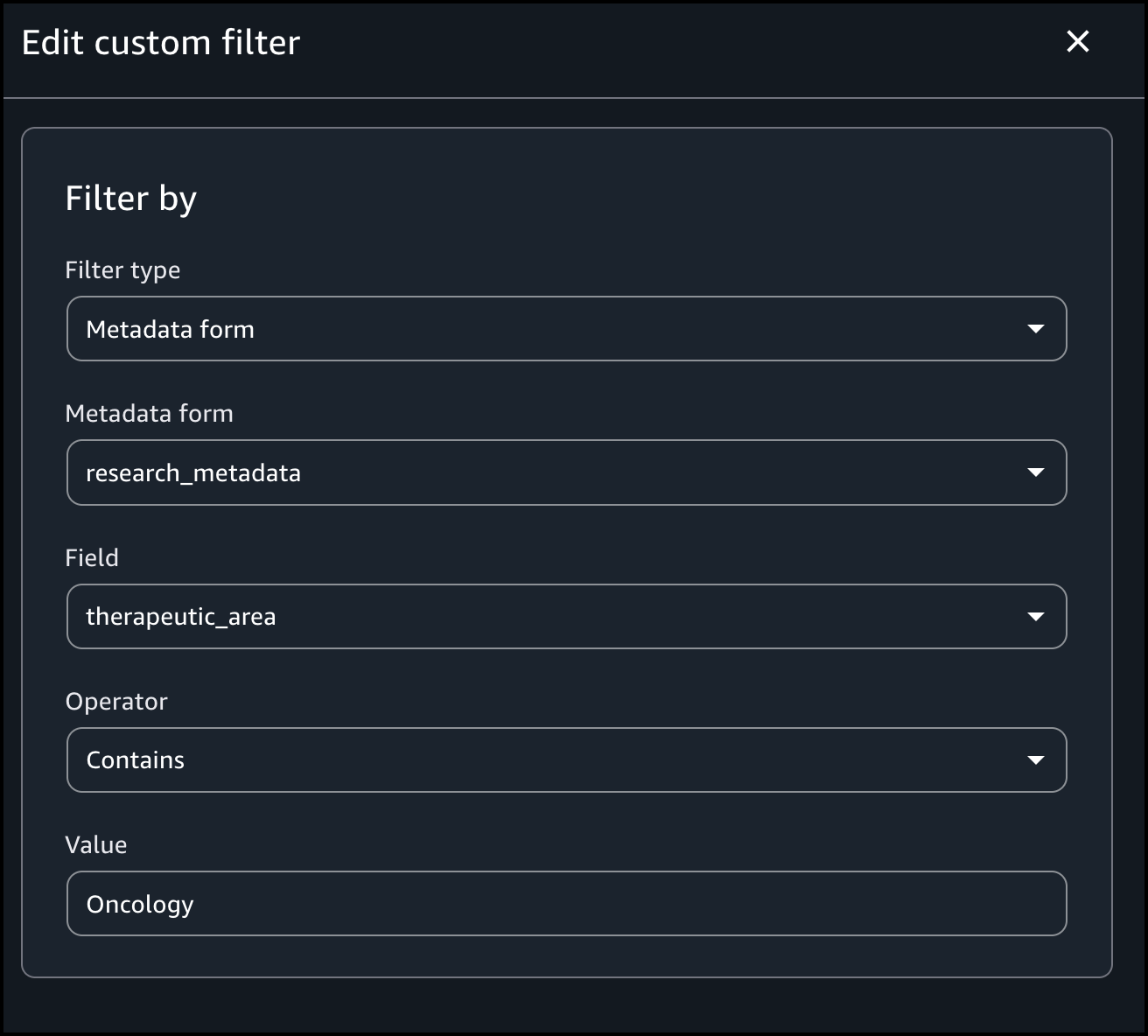
- Choose + Add Filter again. For Filter type, select Metadata form. For Metadata form, select research_metadata and add a filter as shown in the following image. Choose Apply when you’re done.
Manage custom filters
Filter configurations are stored in the user’s browser and are not shared across devices or users.
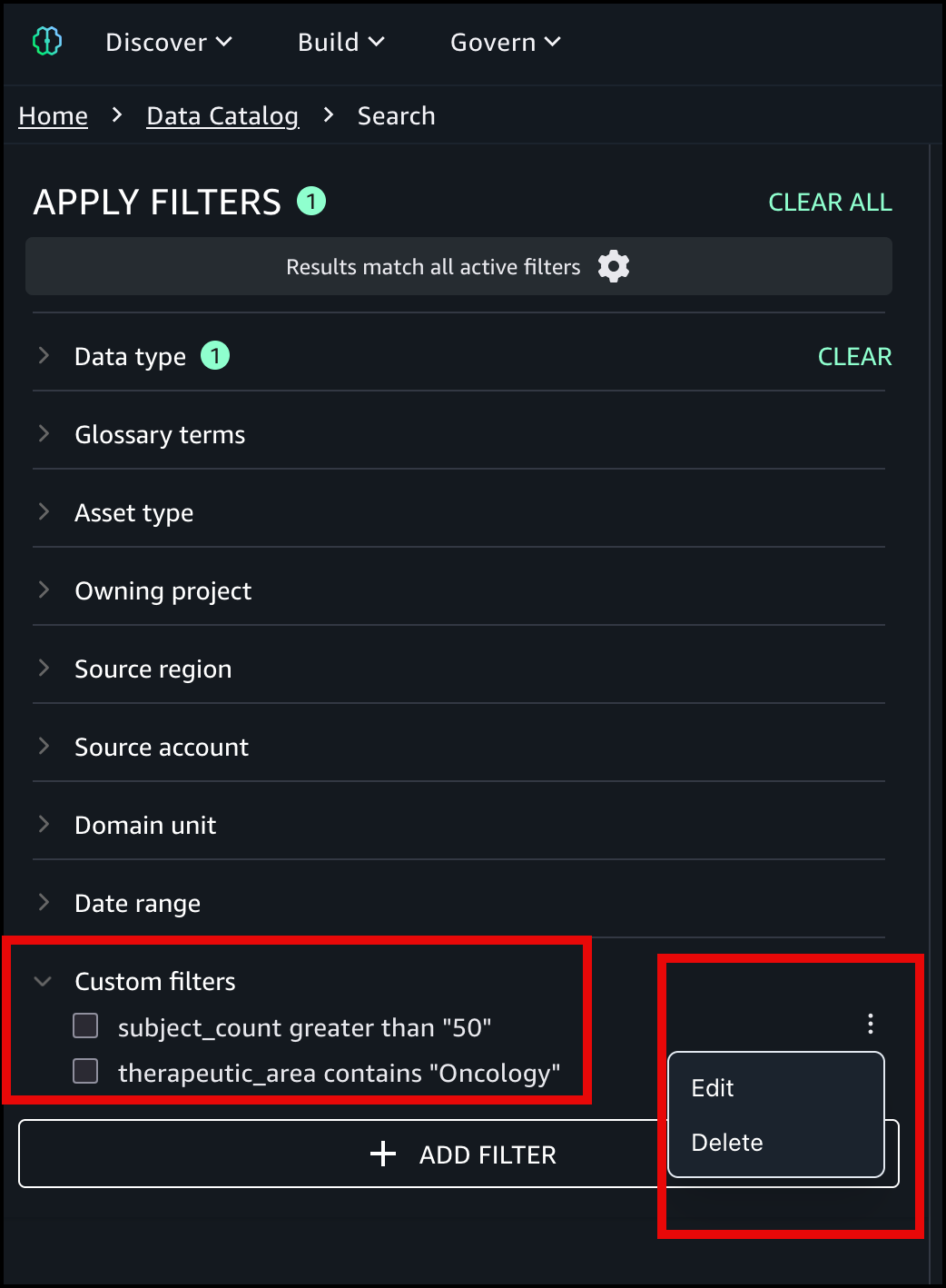
To customize search, you could:
- Toggle filters – Use the checkboxes next to each custom filter to enable or disable them without deleting.
- Edit or delete – Choose the kebab menu (⋮) next to any custom filter to edit its values or delete it.
- Clear all – Choose CLEAR next to the Custom filters header to deselect all custom filters at once.
- Persistence – Your custom filters persist across browser sessions. When you return to the Browse Assets page, your previously defined filters are still listed in the sidebar, ready to be activated.
Using the SearchListings API
To search catalog assets programmatically, you can use the SearchListings API in Amazon DataZone, which supports the same filtering capabilities as the SageMaker Unified Studio UI. The following example filters assets where a custom string field contains a specific value and a numeric field is within a range:
For more details, see the SearchListings API documentation in the Amazon DataZone API Reference.
Best practices
Consider the following best practices when using custom metadata search filters:
- Define your metadata forms before publishing assets at scale. If you publish assets before the forms are finalized, you might need to re-tag existing assets, which is a time-consuming process in large catalogs.
- Define metadata forms aligned with your organization’s discovery needs (therapeutic areas, data classifications, geographic regions) before publishing assets at scale.
- Use specific, consistent values in metadata fields to get precise filter results. For example, use standardized values (for example, use “Oncology” consistently rather than “oncology” or “Onc”) across all assets.
- Combine multiple filters to narrow results efficiently rather than scanning through broad result sets.
- Use the date range filter alongside custom metadata filters to locate assets within specific time windows.
Clean up resources
For instructions on deleting the added assets, see Delete an Amazon SageMaker Unified Studio asset.
For instructions on deleting the metadata forms, see Delete a metadata form in Amazon SageMaker Unified Studio.
Conclusion
Custom metadata search filters in Amazon SageMaker Unified Studio give data consumers the ability to find exact assets using structured filters based on their organization’s own metadata fields. By combining multiple filters across custom metadata forms, asset names, descriptions, and date ranges, data consumers can construct precise queries that surface the right datasets without scanning through broad search results. Filter persistence across browser sessions further streamlines repeated discovery workflows.
Custom metadata search filters are now available in AWS Regions where Amazon SageMaker is supported.
To learn more about Amazon SageMaker, see the Amazon SageMaker documentation. To get started with this capability, refer to the Amazon SageMaker Unified Studio User Guide.
About the authors