
Close Menu
geekfence.comgeekfence.com
    What's Hot

    HCLTech acquires HPE telco unit

    December 29, 2025

    This tiny chip could change the future of quantum computing

    December 29, 2025

    What’s In a Name? Mainframe GDGs Get the Job Done

    December 29, 2025
    Facebook X (Twitter) Instagram
    • About Us
    • Contact Us
    Facebook Instagram
    geekfence.comgeekfence.com
    • Home
    • UK Tech News
    • AI
    • Big Data
    • Cyber Security
      • Cloud Computing
      • iOS Development
    • IoT
    • Mobile
    • Software
      • Software Development
      • Software Engineering
    • Technology
      • Green Technology
      • Nanotechnology
    • Telecom
    geekfence.comgeekfence.com
    Home»iOS Development»Custom working directory in Xcode
    iOS Development

    Custom working directory in Xcode

    AdminBy AdminOctober 29, 2025No Comments3 Mins Read5 Views
    Facebook Twitter Pinterest LinkedIn Telegram Tumblr Email
    Custom working directory in Xcode
    Share
    Facebook Twitter LinkedIn Pinterest Email


    Learn how to set a custom working directory in Xcode to solve one of the most common beginner issue when using Vapor.

    What is a custom working directory?

    When you try to build and run your Vapor application using Xcode you might face the issue that there are some missing files, resources or Leaf templates. Don’t worry this is a very common rookie mistake, but what causes this problem exactly? 🤔

    Vapor is using a place called working directory to set the current environment, locate common resources and publicly available files. This working directory usually contains a Resources folder where you can put your Leaf templates and a Public folder which is used by the FileMiddleware. The server is also trying to search for possible dotenv files to configure environmental variables.

    If you run your backend application without explicitly setting a custom working directory, you should see a warning message in Xcode’s console. If you are using Feather CMS, the app will crash without a custom working directory set, because it is required to provide a working environment. 🙃
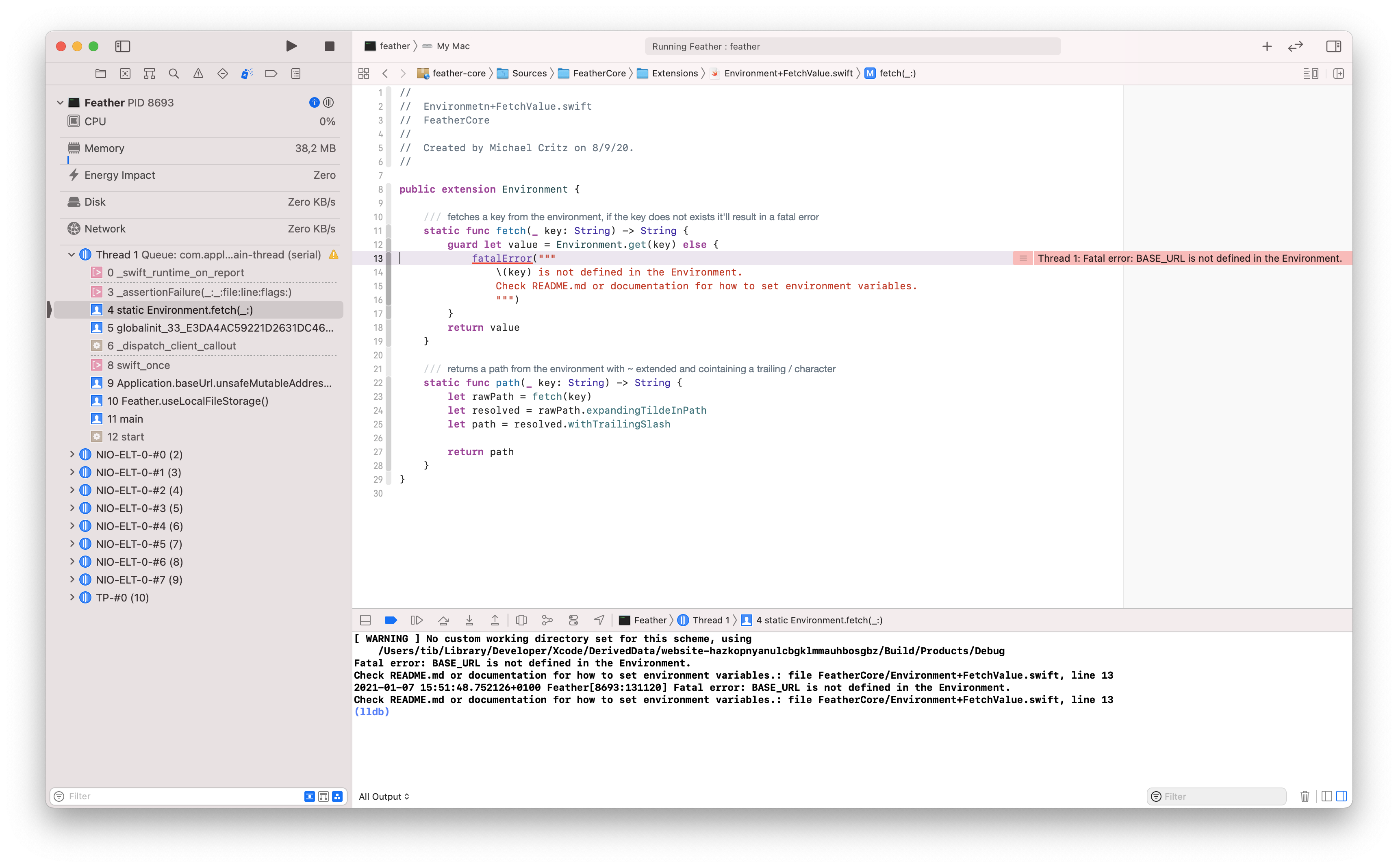
    Custom working directory in Xcode

    If you don’t specify this custom work dir, Xcode will try to look for the resources under a random, but uniquely created place somewhere under the DerivedData directory.

    This is the internal build folder for the IDE, it usually creates lots of other “garbage” files into the ~/Library/Developer/Xcode/DerivedData directory. In 99% of the cases you can safely delete its contents if you want to perform a 100% clean build. 👍

    How to set a custom working directory?

    First of all, open your project in Xcode by double clicking the Package.swift manifest file.

    Do NOT use the swift package generate-xcodeproj command to generate a project file!!! This is a deprecated Swift Package Manager command, and it’s going to be removed soon.

    ✅ I repeat: always open SPM projects through the Package.swift file.
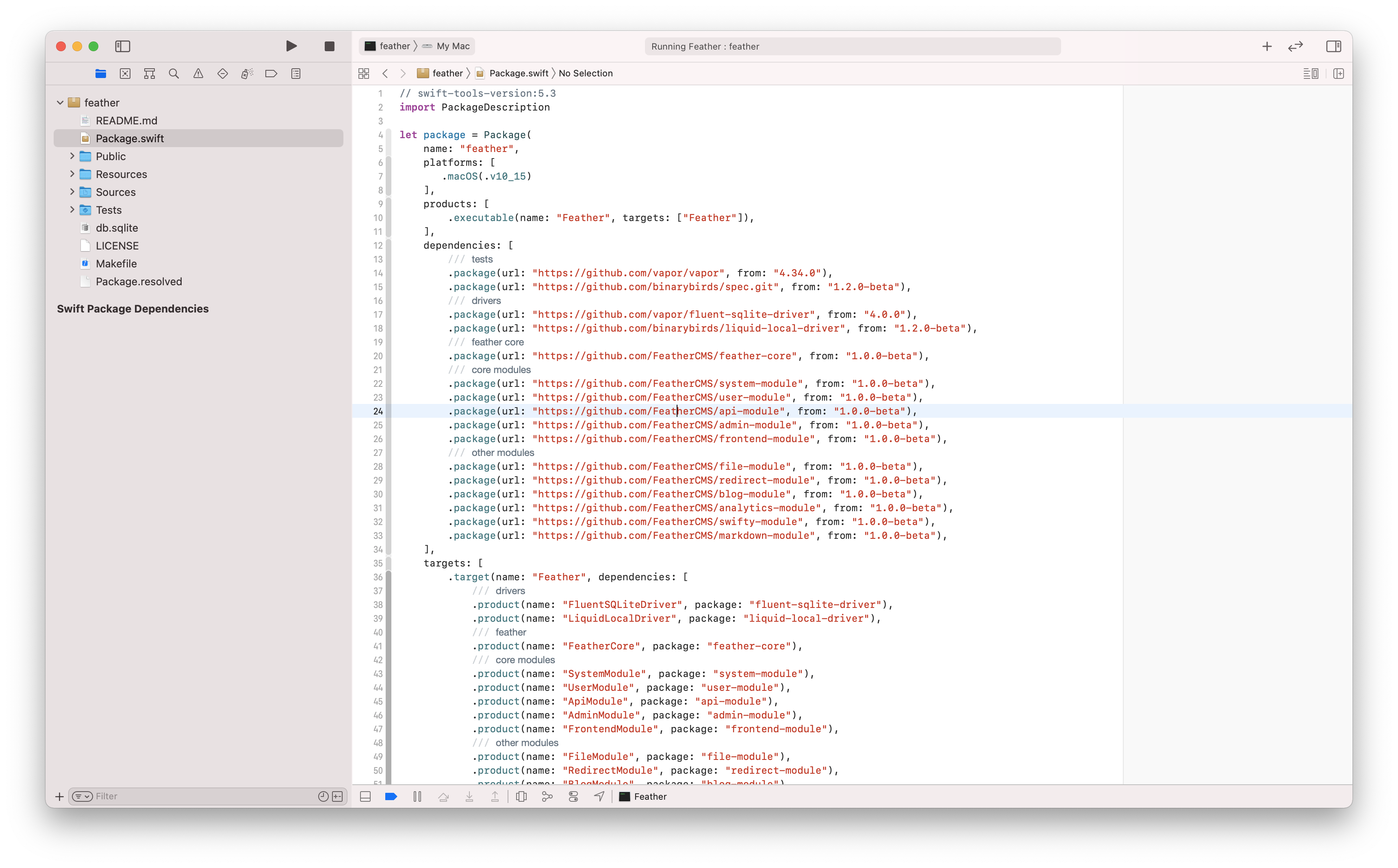
    Target

    Wait until the IDE loads the required Swift packages. After the dependencies are loaded, click on the target next to the stop button. The executable target is marked with a little terminal-like icon. 💡
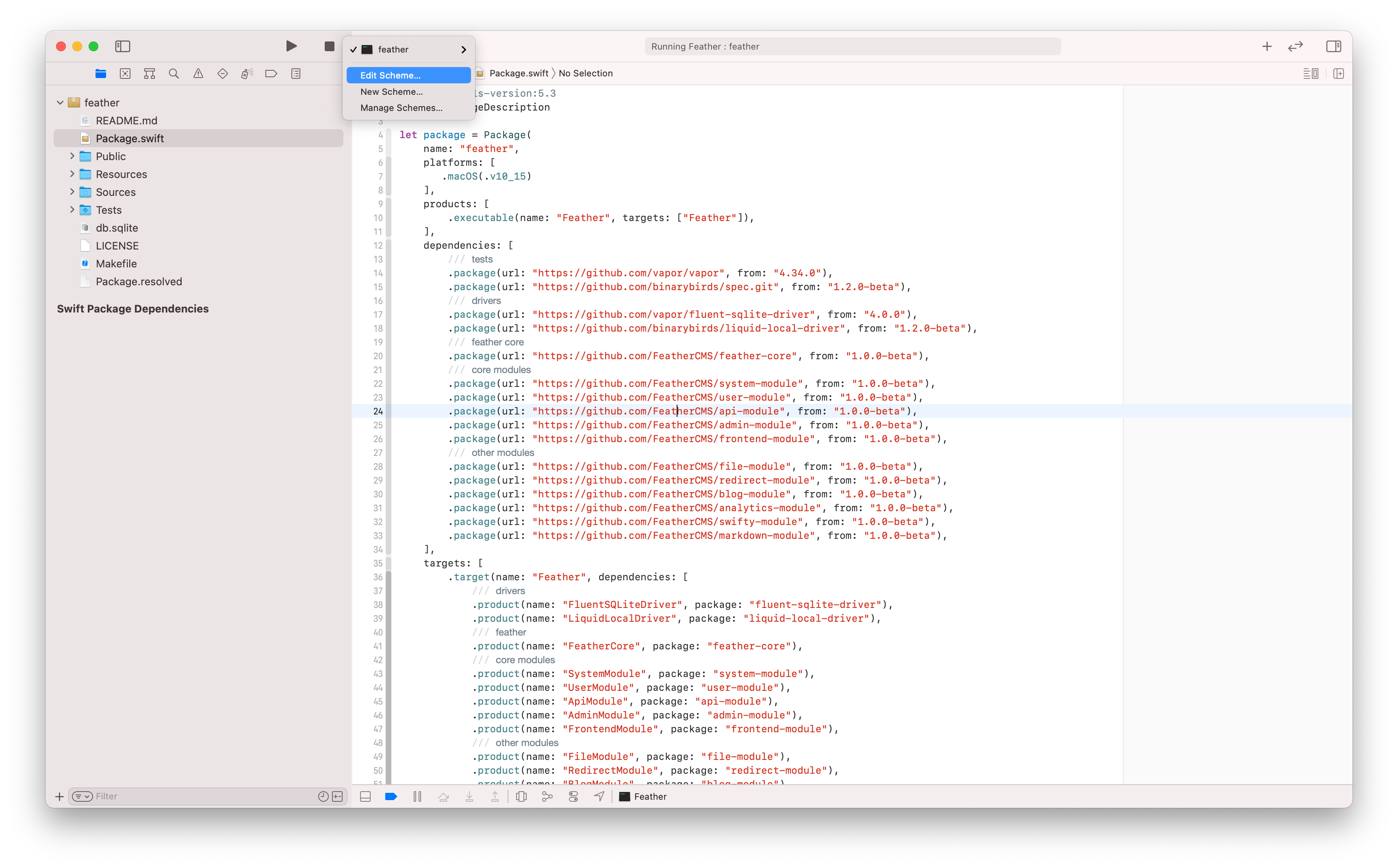
    Edit scheme

    Select the “Edit Scheme…” option from the available menu items, this should open a new modal window on top of Xcode.
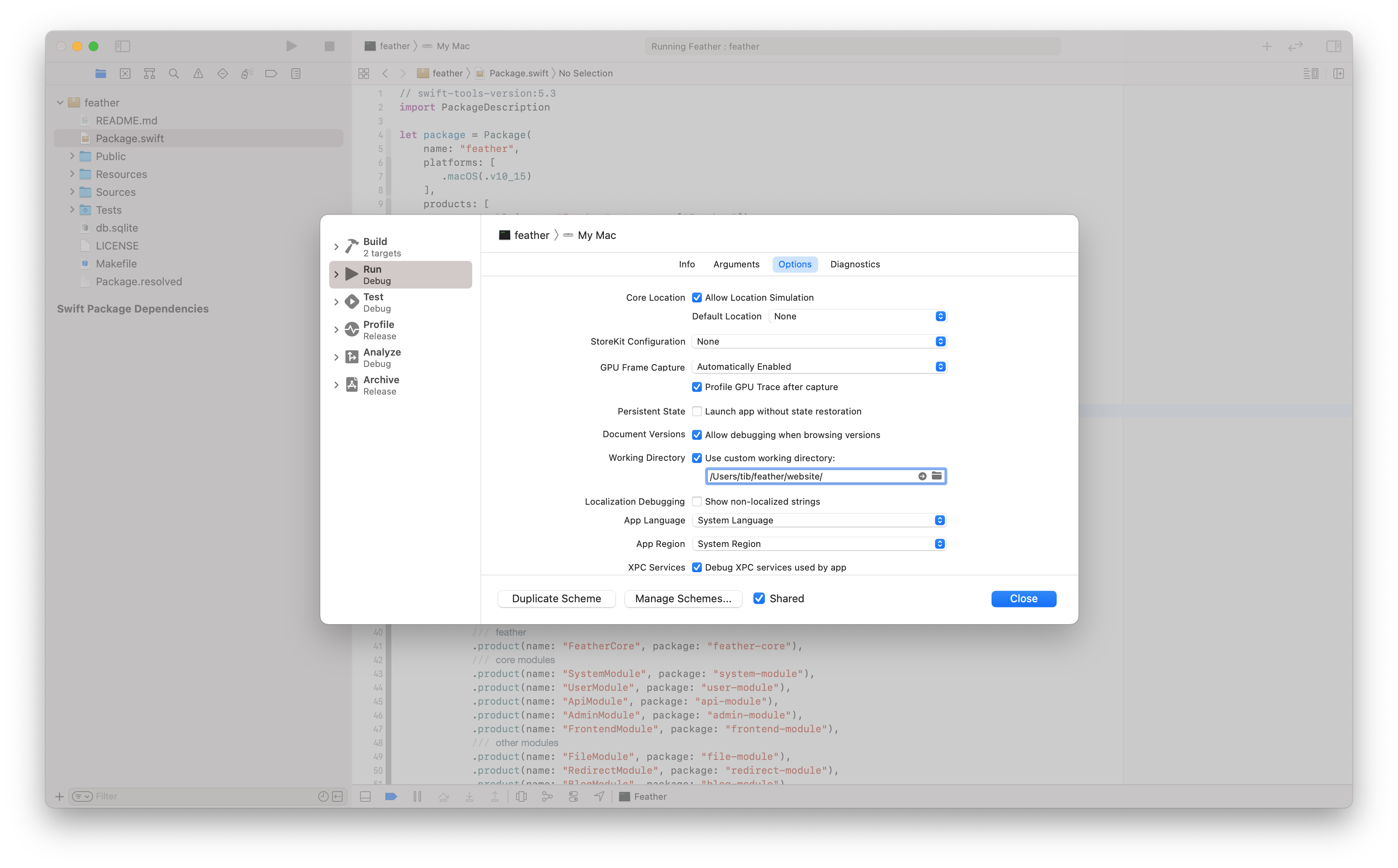
    Custom working directory

    Make sure that the Run configuration is selected on the left side of the pane. Click on the “Options” tab, and then look for the “Working directory” settings. Check the “Use custom working directory:” toggle, this will enable the input field underneath, then finally click on the little folder icon on the top right side (of the input field) and look for your desired directory using the interface. 🔍

    Press the “Choose” button when you are ready. You should see the path of your choice written inside the text field. Make sure that you’ve selected the right location. Now you can click the “Close” button on the bottom right corner, then you can try to start your server by clicking the run button (play icon or you can press the CMD+R shortcut to run the app). ▶️

    If you did everything right, your Vapor server application should use the custom working directory, you can confirm this by checking the logs in Xcode. The previously mentioned warning should disappear and your backend should be able to load all the necessary resources without further issues. I hope this little guide will help you to avoid this common mistake when using Vapor. 🙏


    Source link

    Share. Facebook Twitter Pinterest LinkedIn Tumblr Email

    Related Posts

    Designing custom UI with Liquid Glass on iOS 26 – Donny Wals

    December 29, 2025

    SwiftText | Cocoanetics

    December 28, 2025

    Uniquely identifying views – The.Swift.Dev.

    December 27, 2025

    Unable to upload my app with Transporter. Some kind of version mismatch? [duplicate]

    December 26, 2025

    Experimenting with Live Activities – Ole Begemann

    December 25, 2025

    Announcing Mastering SwiftUI for iOS 18 and Xcode 16

    December 24, 2025
    Top Posts

    Understanding U-Net Architecture in Deep Learning

    November 25, 20258 Views

    Microsoft 365 Copilot now enables you to build apps and workflows

    October 29, 20258 Views

    Here’s the latest company planning for gene-edited babies

    November 2, 20257 Views
    Don't Miss

    HCLTech acquires HPE telco unit

    December 29, 2025

    HCLTech moves toward a future of AI-driven growth In sum – what we know: The…

    This tiny chip could change the future of quantum computing

    December 29, 2025

    What’s In a Name? Mainframe GDGs Get the Job Done

    December 29, 2025

    Microsoft named a Leader in Gartner® Magic Quadrant™ for AI Application Development Platforms

    December 29, 2025
    Stay In Touch
    • Facebook
    • Instagram
    About Us

    At GeekFence, we are a team of tech-enthusiasts, industry watchers and content creators who believe that technology isn’t just about gadgets—it’s about how innovation transforms our lives, work and society. We’ve come together to build a place where readers, thinkers and industry insiders can converge to explore what’s next in tech.

    Our Picks

    HCLTech acquires HPE telco unit

    December 29, 2025

    This tiny chip could change the future of quantum computing

    December 29, 2025

    Subscribe to Updates

    Please enable JavaScript in your browser to complete this form.
    Loading
    • About Us
    • Contact Us
    • Disclaimer
    • Privacy Policy
    • Terms and Conditions
    © 2025 Geekfence.All Rigt Reserved.

    Type above and press Enter to search. Press Esc to cancel.